
The retro aesthetic has surged in popularity in recent years, as people increasingly seek visuals that feel less polished and more human and emotional.
One standout example is a retro look inspired by 3D photography, which initially relied on analog techniques. Today, we have a Dazz Cam 3D camera capable of creating such moving images in seconds. In this article, I will show you a step-by-step guide to making the Dazz Cam 3D effect and share some creative ideas for Dazz Cam 3D Photos.
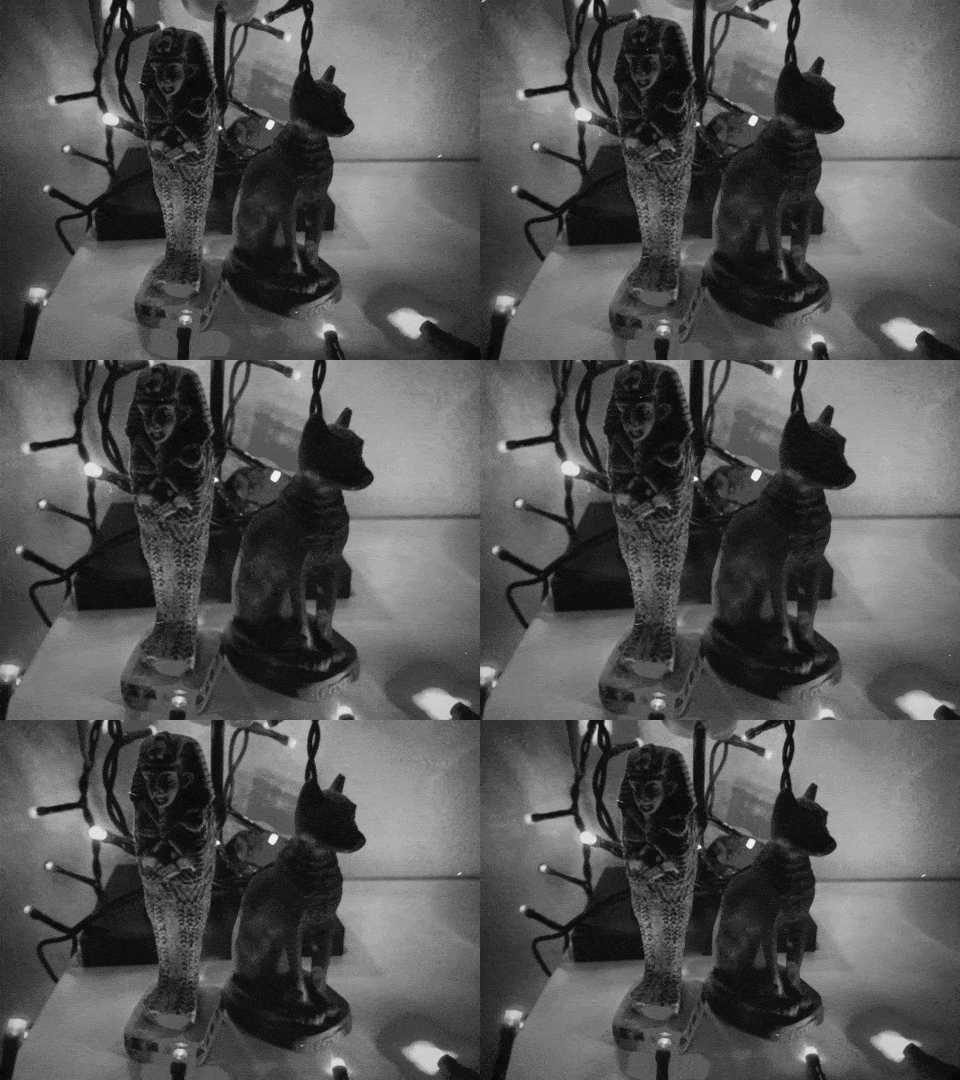
What Is 3D Photography
If we look at the history of 3D photography, we see that early 3D photos were known as stereoscopic images. People made them by taking two pictures, but from slightly different angles. The process of making them move happened in the human brain when viewed through a special viewer. The brain created the illusion of depth, making the photo appear three-dimensional.
At that time, dual-lens cameras were ubiquitous. They were capable of capturing both images simultaneously. After developing the film and pictures, they mounted them side-by-side and, thanks to a stereoscope or lenticular viewer, they blended into a single, immersive 3D picture.
We can state that they produced similar visual qualities that the Dazz Cam 3D now imitates:
- Color shifts
- Misaligned frames
- Soft focus
- Visibla grain
- Light leaks and other imperfections
But those flaws became characteristic features, giving the images emotional depth and feeling.
3D photography slowly made its way into the tourist souvenirs, family portraits, scientific images, cars, and collectibles.
Today, when people long for that nostalgic connection with the mechanical era of photography, they have modern apps like Dazz Cam 3D that simulate such effects quite nicely. Many of these apps shift color channels and apply retro textures.
What Is Dazz Cam 3D and How It Works
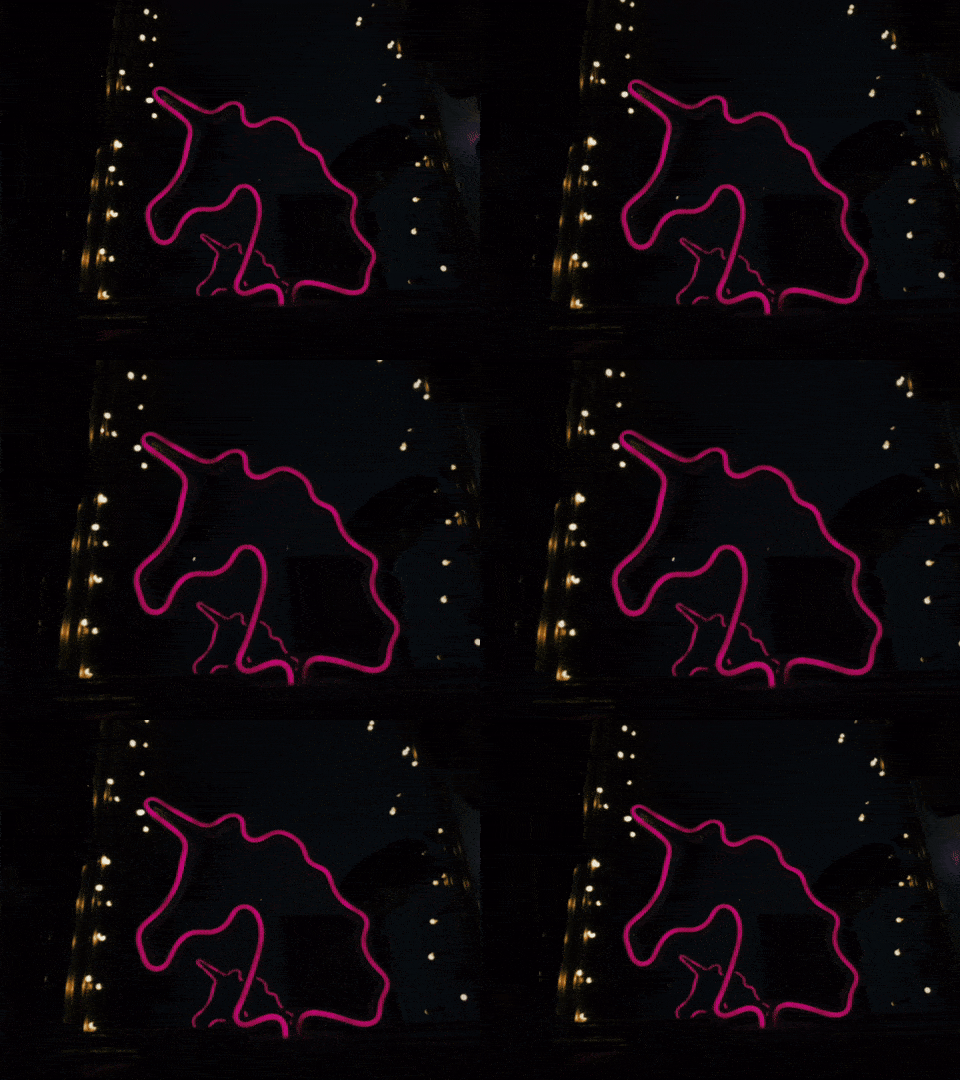
Dazz Cam 3D is a feature, a camera filter, inside the Dazz Cam app. It can create photos with a nostalgic, retro, moving 3D feel. The effect mimics old film-style 3D photography and is deeply inspired by analog cameras, especially those from the 80s. Some people online suggest that the Dazz Cam 3D camera filter resembles cameras like the Nishika N8000 or the Nimslo 3D film camera.
Parallax Effect
What is often mimicked is the parallax effect. The Dazz Cam 3D takes one picture (or at least it looks like it from the outside) and creates a video from the captured images. The frames have slightly different perspectives, and when combined, they make a parallax effect. Parallax effect means the difference in motion between the foreground and background.
Dazz Cam 3D blends images or offsets frames after capture. Some areas of the image may remain stable (background), while others will shift more (subject or foreground).
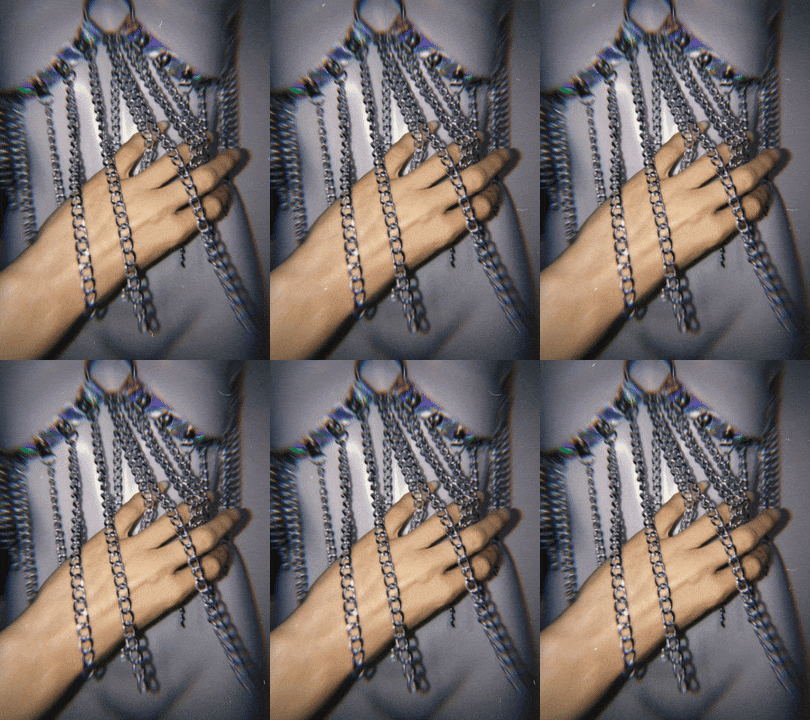
Is Dazz Cam 3D Available on Every Phone?
You can download the app on your mobile phone, both Android and iOS, but only the iPhone version is official. The developer behind the online Android version (Euro PVR Ltd) is different from the one for iOS (DAZZ PTE. LTD.).
If you want to experience the official version, it is better to try the iPhone route, but it will only work on iOS 15.6 or later.
Dazz Cam 3D work on Older iPhones?
I have tested the app on an iPhone 7 with the latest available iOS installed. It does work except for the Dazz Cam 3D. It gives a warning that the device does not support the D3D camera. D3D only works on iPhones with a dual- or triple-camera system, according to its specifications.
What You Need to Create 3D Photos
Besides having the Dazz Cam installed and a smartphone capable of taking 3D photos, you will need to consider some additional factors that can affect the end scene:
Lighting – good lighting can make surfaces, edges, and layers easier for the app to analyze. But there is an in-app flash that you can use.
The camera movement – since the Dazz Cam 3D works with multiple frames from slightly different angles, the camera movement can highly affect the final result. Try to hold your camera steady. If you don’t have a tripod or don’t want to use one, grab your phone with both hands, keep it close to your body, and lean against a wall or a solid surface.
Still subjects – you can capture moving objects or subjects, but at the beginning, it is probably better to focus on something steadier. For fast-moving subjects, you can capture glitches, ghost outlines, overlapping details, or wobbling artifacts. Start with something like portraits, people standing still, still life, statues, architecture, flowers, or food.
Contrast – for a more substantial 3D effect, helps if the subject stands out from the background. You can achieve contrast by light and shadow, color difference, clean backgrounds, and depth separation (subject is close to the camera).
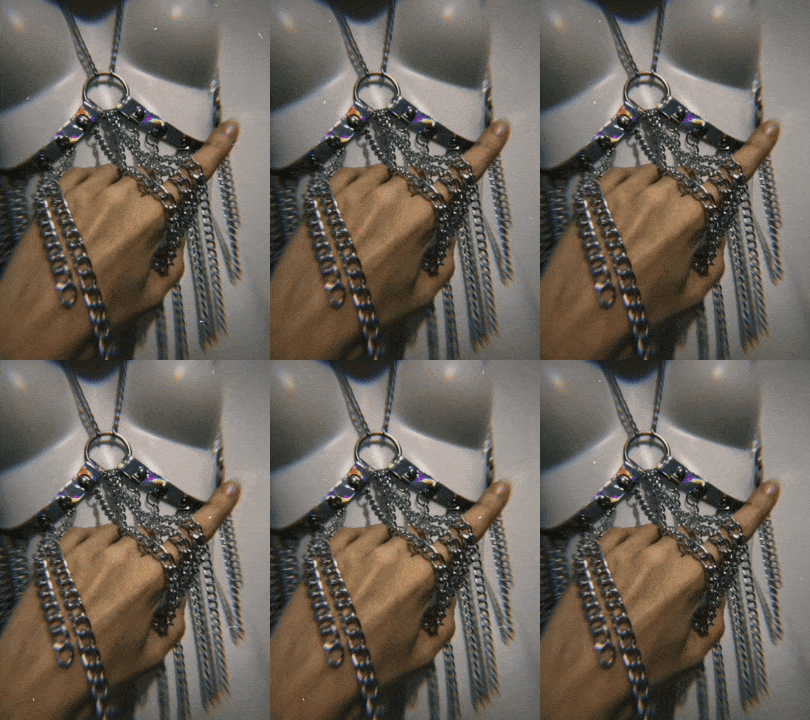
How to Use Dazz Cam 3D – Step-by-Step Tutorial
The Dazz Cam 3D effect looks impressive, and it is easy to create such images. Below is a beginner-friendly guide to help you start building your own moving 3D images.
Step 1 – Open the Dazz Cam 3D App
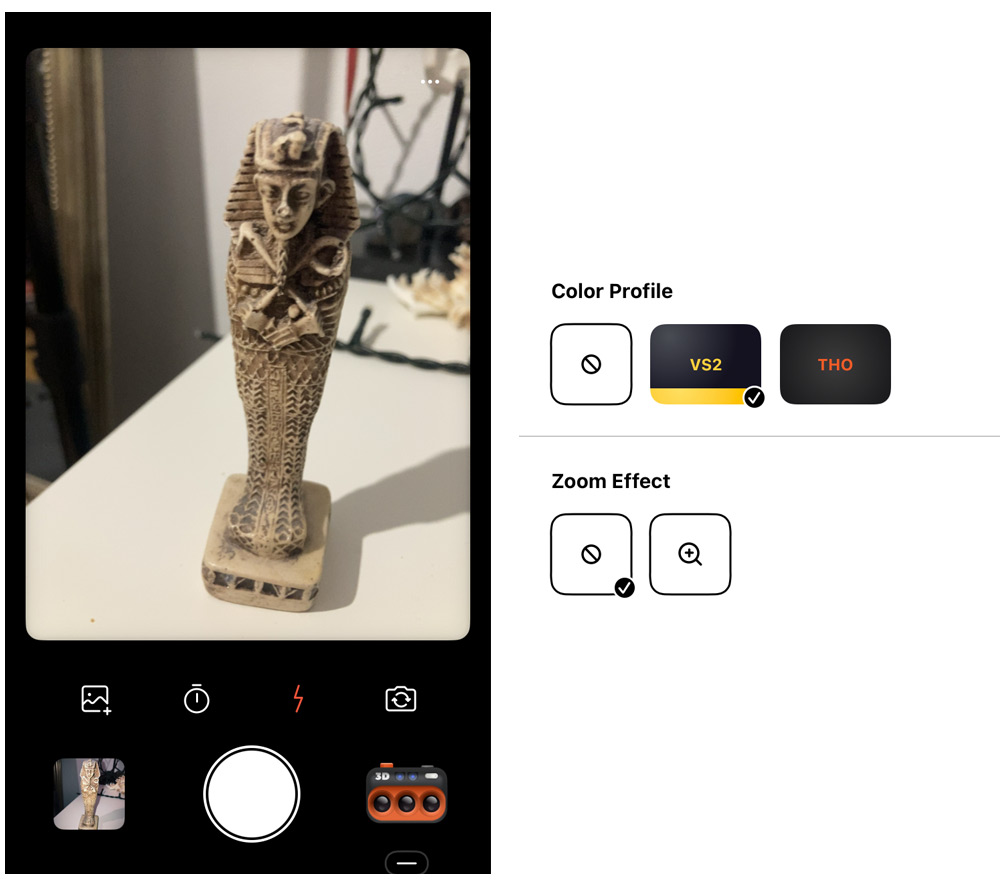
After you have installed the Dazz Cam on your mobile phone, please tap on the icon and open it. When the app starts, it greets you with a prominent display and two menus below it. One of the menus will show you the record button in the middle, the camera filter on the right, and the latest image in the gallery on the left. Above is another menu that shows icons for camera mode switch, flash, timer, and photo import. These icons will not always be available for all camera filters.
Step 2 – Select the 3D Camera Mode
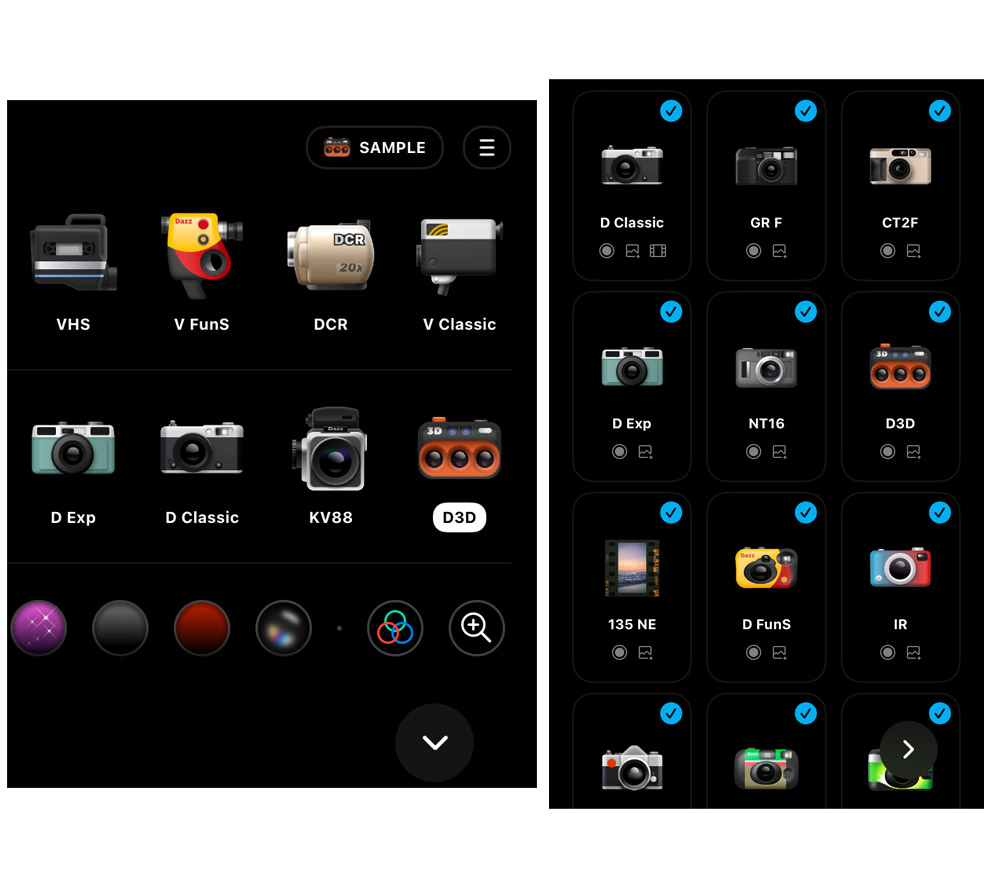
In the bottom right corner, you will see the camera icon. Tap it and choose D3D from the menu that appears.
If you don’t see it there, tap the hamburger menu in the top right corner. A new window will open showing all available cameras. Scroll down, find D3D, and select it by checking the box next to it. Then tap on the arrow in the bottom right corner. The camera should now appear in the camera list; tap it to choose it.
You should now have the camera icon in the right corner. Below it is a line. Tap it for further options – it lets you choose a color profile (VS2, THO) and de/activate a zoom effect.
Step 3 – Frame Your Subject
After you have adjusted the settings, you can start with framing your subject. Keep your subject close to the camera. The parallax effect works best with visible textures or shapes, such as clothing folds, hair, plants, faces, and architectural details. These elements help the app detect depth and movement between frames.
Step 4 – Capture the Movement
Now you can proceed to capture the movement. Just press the record button in the middle of the menu. The app will capture several frames in rapid succession from different positions and blend them.
Step 5 – Preview and Save
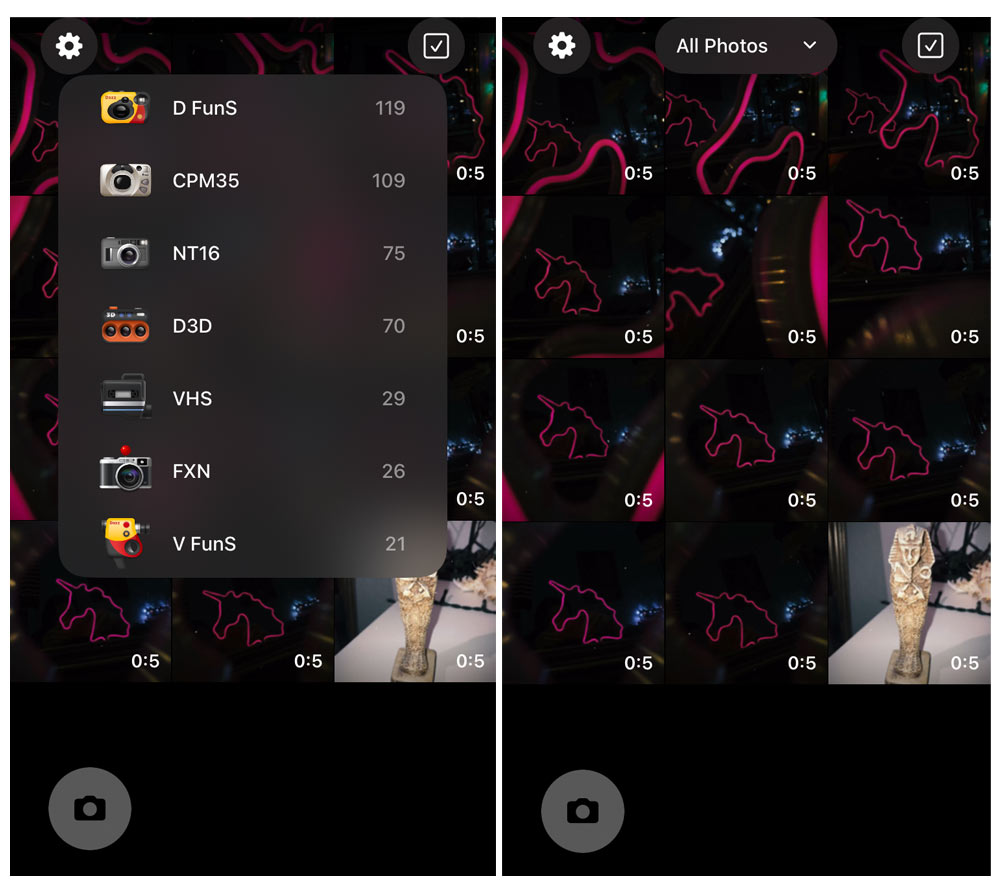
After shooting, you can preview your animations. Just tap the small picture thumbnail in the left corner that should represent your last image. A new window will show up. In it, you can access all your previous photos, too.
Creative Ideas for Dazz Cam 3D Photos
If you are a little bit clueless about what to shoot for your Dazz Cam 3D Photos, here is a list of some ideas:
- portraits (faces and details like hair, jewelry, or clothing folds)
- street photography (busy street scenes with cars, people, and buildings)
- travel (iconic landmarks mixed with foreground subjects)
- fashion (flowing fabric, accessories, and bold styling)
- neon lights
- architecture (strong lines, geometry, and leading perspectives)
- reflections & mirrors ( mirrors, water reflections, or shiny surfaces)
- low-angle drama shots (shooting from below makes buildings, people, statues, and objects appear more monumental)
- retro objects (cassette players, old cameras, vinyl records, telephones)
- cars & motorcycles
- shop window displays (glass, reflections, layers, and neon signs)
- art, graffiti & murals
Apps Like Dazz Cam 3D (Alternatives)
You can consider using some alternative apps, but their final 3D photos may look different—for example, PopPic, Parallax 3D photo editor, or FILM3D. I have quickly tested two of them and was not very intrigued by the results. They both lacked the retro touch of the Dazz Cam 3D photos.
Can You Use Dazz Cam 3D for Free?
You can use the Dazz Cam 3D camera for free, but if you want to export images, you will need to subscribe. A one-year subscription costs only 5,49 EUR, and a one-time purchase costs 14,99 EUR.
Final Thoughts
The Dazz Cam 3D effect may look complex at first glance, but as you can already see, it is not that hard to understand how it works. Very soon after you start using the app, you will realize that creating 3D images becomes surprisingly simple. All you need is your phone, Dazz Cam 3D camera mode, and stable shooting conditions and lighting.
If you enjoyed this guide, you might also like my article 10 Best Dazz Cam Filters to Transform Photos with a Retro Touch or my full review Is Dazz Cam Worth It? A Complete Review of the Retro Film Camera App.
Sources:
Sources: