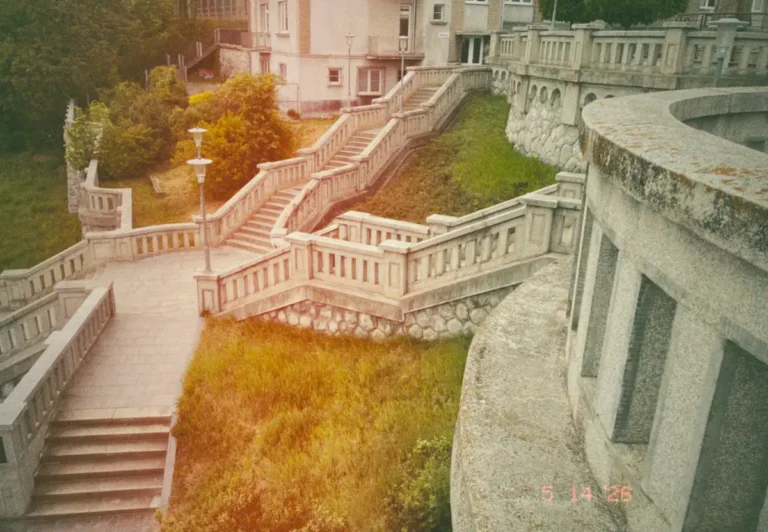
Modern digital photos are incredibly sharp and detailed. Sometimes they can feel too perfect. If you’re new to retro photo editing, it helps to first understand what a vintage photo filter is. Vintage photo filters bring back the atmosphere of analog photography, as well as the nostalgic imperfections inspired by old film cameras, retro cinema, and the spontaneous aesthetic of Lomography.
While many apps offer one-click vintage presets, creating your own custom vintage photo filter gives your photography a more personal and recognizable style. You can control the mood, colors, contrast, and texture to create an aesthetic that fits your travel photos, street photography, portraits, or cinematic scenes.
At the same time, many people are not simply trying to create a completely original style. Often, they discover a retro photo online. Usually a faded street scene, a cinematic travel image, a 90s disposable camera snapshot, or a dreamy lomography photograph. They want to recreate that same atmosphere in their own work. Vintage editing is heavily connected to visual memory, nostalgia, and inspiration from images people have already seen in movies, magazines, social media, or old family photo albums.
Vintage editing is usually not only about making photos look old. It is about recreating emotion, atmosphere, and imperfections associated with analog photography.
In this guide, you will learn how to create a custom vintage photo filter step by step using simple editing techniques. We will also look at how to recreate classic film-inspired looks in Adobe Lightroom, Adobe Photoshop, mobile apps, and free online tools. These techniques will help you create vintage edits that feel timeless rather than overprocessed.
If you prefer ready-made retro aesthetics instead of manual editing, you can also explore some of the best vintage photo filter apps for film and retro photography, including apps inspired by analog film, disposable cameras, and Y2K digital photography.
Custom vintage photo filter
What Is a Vintage Photo Filter?
Before creating your own vintage effect, it helps to understand the visual characteristics that define this style. Vintage photo filters are designed to recreate the look of older film photographs by introducing elements such as faded colors, softer contrast, warm tones, film grain, and subtle imperfections.
These effects help digital images feel more nostalgic and atmospheric, which is why vintage editing remains popular in travel, street, and lifestyle photography.
If you’d like a deeper explanation of how vintage filters work and the different styles available, see my complete guide on what a vintage photo filter is.
Custom vintage photo filter
Choose the Right Photo for a Vintage Look
Before you even open an editing app, it is important to choose the right image. Not every photo works naturally with a vintage effect. While almost any picture can technically receive a retro filter, some subjects already contain the atmosphere, textures, and lighting that make vintage editing feel believable.
For example, a futuristic glass skyscraper or ultra-modern technology may look strange when combined with heavy film grain and faded analog colors. On the other hand, historic streets, old cafés, trains, rainy evenings, or imperfect travel moments often blend beautifully with vintage aesthetics because they already feel timeless.
Vintage editing works especially well in travel photography because many destinations naturally contain nostalgic elements — weathered buildings, old architecture, handwritten signs, narrow streets, faded textures, and cinematic lighting conditions.
Some of the best subjects for vintage photo editing include:
historic European streets and old buildings,
rustic textures,
cafés and bookstores,
trains and classic transportation,
night photography with neon lights,
sunsets and golden hour scenes,
beach towns and summer travel moments,
candid portraits,
timeless fashion,
analog-style interiors,
and imperfect everyday situations captured spontaneously.
Elements That Can Break the Vintage Illusion
futuristic architecture,
bright LED lighting,
modern logos and advertisements,
overly sharp HDR editing,
smartwatches and visible modern technology,
extremely clean minimalist environments.
Before
After
Step-by-Step: Create Your Own Vintage Photo Filter
Now that you have chosen the right image, it is time to build your own custom vintage photo filter.
One of the biggest mistakes beginners make is applying an aggressive preset with heavy sepia tones and extreme grain. In reality, most authentic vintage edits are relatively subtle. Small adjustments to contrast, color, grain, and lighting usually create a more believable result.
The following steps can be recreated in almost any editing software, including Adobe Lightroom, Adobe Photoshop, mobile editing apps, or free online photo editors.
Lower the Contrast
Modern smartphone photos are often extremely contrast-heavy, with deep blacks and bright highlights. Older film photography usually feels softer and more compressed.
To recreate this look:
slightly reduce overall contrast,
lift the black tones,
soften harsh shadows,
and avoid pure black areas.
Reduce Saturation
Vintage photos rarely contain highly saturated colors. Analog film often produced softer and less aggressive tones compared to modern digital cameras.
Reduce saturation carefully, especially in:
blues,
greens,
and highly vibrant reds.
The image should still feel colorful, but more muted and natural.
Add Warm Tones
Warmth is one of the most recognizable characteristics of vintage photography. Slight yellow, orange, brown, or sepia tones can immediately create a nostalgic atmosphere.
You can achieve this by:
increasing temperature slightly,
adding warm highlights,
or introducing subtle color shifts in the shadows.
Some photographers also prefer colder vintage looks inspired by Eastern European film photography or 90s disposable cameras, so the final color palette depends on the mood you want to recreate.
Fade the Blacks
A classic vintage editing technique is fading the darkest parts of the image instead of keeping deep digital blacks.
This creates a softer analog appearance similar to scanned film photographs.
In most editing apps, this effect can be created by:
lifting the black point,
adjusting the tone curve,
or reducing shadow intensity.
The result should feel atmospheric rather than washed out.
Add Film Grain
Film grain is one of the most important parts of a convincing vintage filter. Unlike digital noise, analog grain adds texture and movement that feels organic and imperfect.
When adding grain:
keep it subtle,
avoid extreme rough textures,
and match the grain strength to the image size and lighting.
Too much grain can quickly make a photo look artificial.
Add Vignette, Light Leaks or Dust Effects
Many vintage photos contain darker corners, lens imperfections, or accidental light exposure caused by older cameras.
A soft vignette can help focus attention toward the center of the frame, while light leaks or dust can recreate the unpredictable feeling of analog photography associated with Lomography.
Warm orange or red leaks usually work best for nostalgic travel photography.
Slightly Reduce Sharpness
Modern cameras are often much sharper than old film photography. Reducing clarity or sharpness slightly can help remove the overly digital appearance.
This works especially well for:
portraits,
night photography,
cinematic travel scenes,
and dreamy summer images.
Be careful not to blur the image too much — the goal is softness, not loss of detail.
Create a Consistent Style
The final step is consistency. The best custom vintage photo filters usually follow a recognizable mood or aesthetic.
Over time, your editing choices become part of your visual identity. This is one reason many (travel) photographers and creators build their own custom filters instead of relying entirely on ready-made presets.
Before
After
How to Create a Vintage Filter in Lightroom
Adobe Lightroom is one of the best tools for creating custom vintage photo filters because it gives you precise control over tones, colors, grain, and film-like texture without making the image look overly artificial.
One of the biggest advantages of Lightroom is that you can save your settings as a custom preset and apply the same vintage look consistently across multiple photos.
Start With Basic Adjustments
Before adding grain or vintage effects, begin by softening the digital look of the image.
A typical vintage base often includes:
slightly lower contrast,
reduced highlights,
lifted shadows,
softer whites,
and faded blacks.
The goal is to remove the ultra-clean appearance common in modern smartphone photography.
Use the Tone Curve for Faded Blacks
The Tone Curve is one of the most important tools for creating an authentic vintage aesthetic.
Instead of keeping deep black shadows, slightly lift the lower part of the curve to create a matte film look.
Even a small adjustment can make a photo feel softer and more cinematic. Many classic analog images have this slightly faded shadow structure because film handles dark tones differently than digital sensors.
Adjust the Colors
Vintage photography usually contains more muted and harmonious colors than modern edits.
In Lightroom’s Color Mixer (HSL panel), you can:
reduce overly vibrant blues and greens,
soften skin tones,
shift greens slightly toward yellow,
or add warmer orange tones to highlights.
Small color shifts often create a more realistic film-inspired atmosphere than heavy filters.
Add warm or cool film tones to achieve different vintage styles with different color temperatures.
Add Film Grain
The Grain tool is essential for recreating analog texture.
Unlike digital noise, film grain should feel organic and soft rather than harsh or pixelated.
A subtle amount of grain usually works best for:
travel photography,
street photography,
portraits,
and cinematic night scenes.
Too much grain can quickly make the image feel fake or overly edited.
Reduce Clarity and Sharpness Slightly
Modern digital photos are often extremely sharp. Lowering clarity slightly can help recreate the softer rendering associated with film photography and older lenses.
Save Your Vintage Preset
Once you are happy with the final look, save your settings as a custom Lightroom preset. This allows you to create a recognizable visual style across your travel photos, blog content, or social media posts.
The process is simple and only takes a few seconds.
Finish editing your photo.
Open the Presets panel on the left side (or tap the three-dot menu in the top corner in mobile app).
Click the + icon next to Presets.
Select Create Preset.
Give your preset a name.
Choose which settings you want to save.
Click Create.
Custom Preset
How to Create a Vintage Filter in Photoshop
While Adobe Lightroom is excellent for fast workflow and preset creation, Adobe Photoshop gives you much deeper control. One of the biggest advantages of Photoshop is that you can work non-destructively using adjustment layers, meaning you can experiment freely without permanently changing the original image.
Duplicate Your Background Layer
Before starting, duplicate your original image layer.
This creates a backup and allows you to compare the edited version with the original photo later.
You can do this quickly using:
Ctrl + J on Windows
Cmd + J on Mac
Use Curves for a Film Look
The Curves adjustment layer is one of the most important tools for creating a realistic vintage aesthetic.
Instead of using deep digital blacks, slightly raise the bottom-left part of the curve to create faded shadows and a softer analog feel.
You can also experiment with individual RGB channels:
add subtle blue tones to shadows,
warm highlights with red and yellow tones,
or create faded greenish film aesthetics inspired by older cinema and disposable cameras.
Small adjustments usually look more realistic than extreme color grading.
Experiment With Color Lookup LUTs
Photoshop includes built-in cinematic LUTs (Look-Up Tables) that can instantly create a retro atmosphere.
Try experimenting with:
Fuji-inspired looks,
Kodak-style cinematic tones,
or faded film emulations.
Reduce the opacity afterward so the effect remains subtle and natural rather than overly stylized.
Custom vintage photo filter in Photoshop including LUT
Create Realistic Film Grain
Film grain is one of the defining elements of analog photography. Instead of using aggressive digital noise filters, Photoshop allows you to build more natural-looking grain manually.
One effective method is:
Create a new blank layer.
Fill it with 50% gray.
Change the blending mode to Overlay.
Add Noise.
Lower the opacity if necessary.
This creates a softer and more controllable film texture that can be adjusted depending on the mood of the image.
Custom vintage photo filter in Photoshop including Grain layer
Add Light Leaks and Texture Overlays
Vintage photography often contains imperfections caused by older camera equipment and damaged film rolls.
You can add:
light leak overlays,
dust textures,
scratched film effects,
or faded paper textures.
Most overlays work best when:
the blending mode is set to Screen or Lighten,
and the opacity stays relatively low.
The effect should enhance the atmosphere without distracting from the actual photo.
Many photographers download free overlay packs online, especially PNG textures containing film dust, scratches, or light leaks. You can also create your own textures by photographing dusty glass, old paper, reflections, direct sunlight entering the lens, or even damaged film scans. This often produces more original and realistic results than using the same popular overlay packs seen across social media.
Best Apps for Vintage Photo Filters
If you want to create a vintage aesthetic quickly on the go with your smartphone, you can still discover how to create a custom vintage photo filter using specialized mobile applications.
Without spending hours editing manually, vintage camera and film filter apps can be incredibly useful. Some apps focus on realism and film emulation, while others lean more toward stylized retro aesthetics inspired by the 1990s, lomography, VHS visuals, or instant cameras.
It often feels less like “editing” and more like capturing a certain emotional tone or memory. You can also read my full review of Mood Camera for a deeper look at its film simulations and shooting experience.
Mood Camera
Mood Camera focuses less on technical perfection and more on atmosphere — exactly as the name suggests. Instead of overwhelming users with endless editing sliders, the app is designed to create emotional and cinematic film-like rendering directly in-camera.
Noir 800-C
Dazz Cam
DAZZ Cam became popular because it recreates the unpredictable charm of disposable cameras, compact point-and-shoots, VHS visuals, and retro digital photography from the 1990s and early 2000s.
One of the most interesting things about DAZZ Cam is that it can also teach users more about photography and classic camera aesthetics. Different virtual cameras inside the app imitate real lenses, film stocks, and shooting styles, which makes the experience feel closer to experimenting with actual analog gear rather than simply applying filters.
This makes DAZZ Cam especially appealing for people who are curious about film photography but do not yet own physical analog cameras.
If you want a more detailed breakdown, I also wrote a full review of DAZZ Cam and its different camera simulations.
Dazz cam filter D Exp
HUJI Cam
HUJI Cam focuses heavily on recreating the feeling of cheap disposable cameras from the late 1990s.
One detail that makes HUJI Cam feel more authentic — but can also frustrate some users — is the tiny built-in viewfinder. Instead of using the entire smartphone screen normally, the app encourages users to shoot through a small preview window, similar to old disposable cameras.
For some people this increases immersion and nostalgia. For others, especially modern smartphone users used to large previews and precision framing, it can feel slightly inconvenient or even like a pain to use during everyday shooting.
HUJI cam with flash
Free Online Vintage Photo Filter Tools
You do not need expensive software or advanced editing skills to experiment with vintage photography styles. Today, many online editors allow you to create retro film aesthetics directly inside your browser without downloading heavy applications or learning complex editing workflows.
Canva
Canva is mostly known as a graphic design platform, but it also includes a surprisingly capable photo editor with built-in retro filters and adjustment tools.
You can combine vintage filters with manual adjustments such as:
warmth,
grain,
brightness,
fade,
vignette,
and contrast reduction.
This makes Canva useful for beginners who want a simple way to create nostalgic travel photos or cinematic social media visuals without using advanced editing software.
Canva photo editor
Pixelied
Pixelied is a powerful online editing suite equipped with an array of vintage effects. It allows you to quickly adjust color balances, add grain, and overlay retro textures over your images without requiring any registration or technical editing experience. In case you would love to use filters or specific effects, you will need to register or choose a paid plan.
Pixelied photo editor
Physical DIY Filters
Besides digital effects, you can also create unique looks using simple physical materials placed in front of your camera lens. Everyday objects like colored plastic, packaging materials, or textured surfaces can act as improvised filters, adding unexpected tones, distortions, and light effects to your photos.
This approach is part of a broader DIY camera experimentation process, where randomness and imperfection play a key creative role. You don’t need professional gear—just curiosity and a willingness to experiment with what you already have at home.
At the end of the day, learning how to create a custom vintage photo filter is not really about making modern digital images look old. It is about creating atmosphere, emotion, and a sense of memory that feels timeless.
One reason vintage photography remains so popular is because people often connect emotionally to imperfect images. Grain, faded colors, soft focus, light leaks, and analog textures can make photos feel more personal and human compared to the ultra-clean perfection of modern smartphone photography.
By understanding how to create a custom vintage photo filter instead of relying only on generic one-click presets, you gradually learn how color, contrast, grain, and lighting shape the emotional tone of a photograph. Over time, these choices can evolve into a recognizable visual style across your travel photography, blog, or social media content.
Whether you prefer warm cinematic travel tones, faded 90s disposable camera aesthetics, black-and-white film photography, or experimental analog textures, the most effective vintage edits are usually subtle.
Custom filter in Photoshop including LUT Kodak 5218 Kodak 2383 – Before
After
Sources:
Film & Vintage Photography Aesthetics
Lomography Magazine
Kodak Motion Picture Film Stocks
Adobe Lightroom Tutorials
Adobe Photoshop Photography Tutorials
Fujifilm Film Simulation Guide
Apps Mentioned
DAZZ Cam
Mood Camera
HUJI Cam
Online Editors
Canva Photo Effects
Pixelied Photo Editor
Edit Template
Sources:
Cookie Consent
We use cookies to optimize your experience, personalize content, and analyze our traffic. By clicking "Accept All", you agree to our use of cookies for a smoother and faster browsing experience. Learn more in our Privacy Policy.
Contains information related to marketing campaigns of the user. These are shared with Google AdWords / Google Ads when the Google Ads and Google Analytics accounts are linked together.
90 days
__utma
ID used to identify users and sessions
2 years after last activity
__utmt
Used to monitor number of Google Analytics server requests
10 minutes
__utmb
Used to distinguish new sessions and visits. This cookie is set when the GA.js javascript library is loaded and there is no existing __utmb cookie. The cookie is updated every time data is sent to the Google Analytics server.
30 minutes after last activity
__utmc
Used only with old Urchin versions of Google Analytics and not with GA.js. Was used to distinguish between new sessions and visits at the end of a session.
End of session (browser)
__utmz
Contains information about the traffic source or campaign that directed user to the website. The cookie is set when the GA.js javascript is loaded and updated when data is sent to the Google Anaytics server
6 months after last activity
__utmv
Contains custom information set by the web developer via the _setCustomVar method in Google Analytics. This cookie is updated every time new data is sent to the Google Analytics server.
2 years after last activity
__utmx
Used to determine whether a user is included in an A / B or Multivariate test.
18 months
_ga
ID used to identify users
2 years
_gali
Used by Google Analytics to determine which links on a page are being clicked
30 seconds
_ga_
ID used to identify users
2 years
_gid
ID used to identify users for 24 hours after last activity
24 hours
_gat
Used to monitor number of Google Analytics server requests when using Google Tag Manager
1 minute
Marketing cookies are used to follow visitors to websites. The intention is to show ads that are relevant and engaging to the individual user.
This script provides interactive maps and affiliate tools for searching and booking accommodations and flights. Cookies are used to correctly display prices, availability, and to anonymously track affiliate booking commissions.