
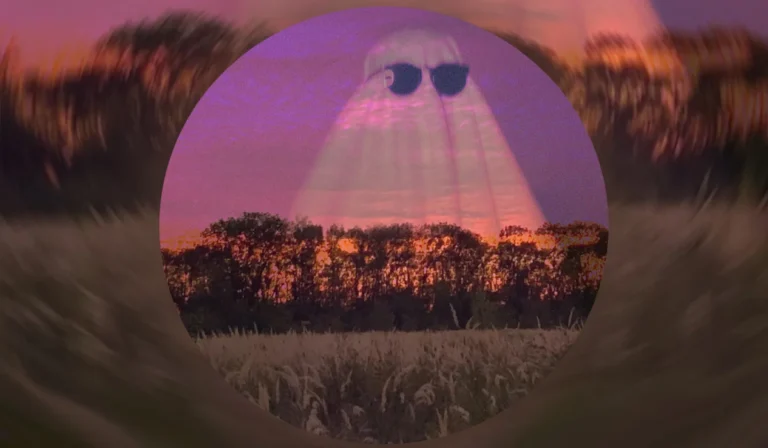
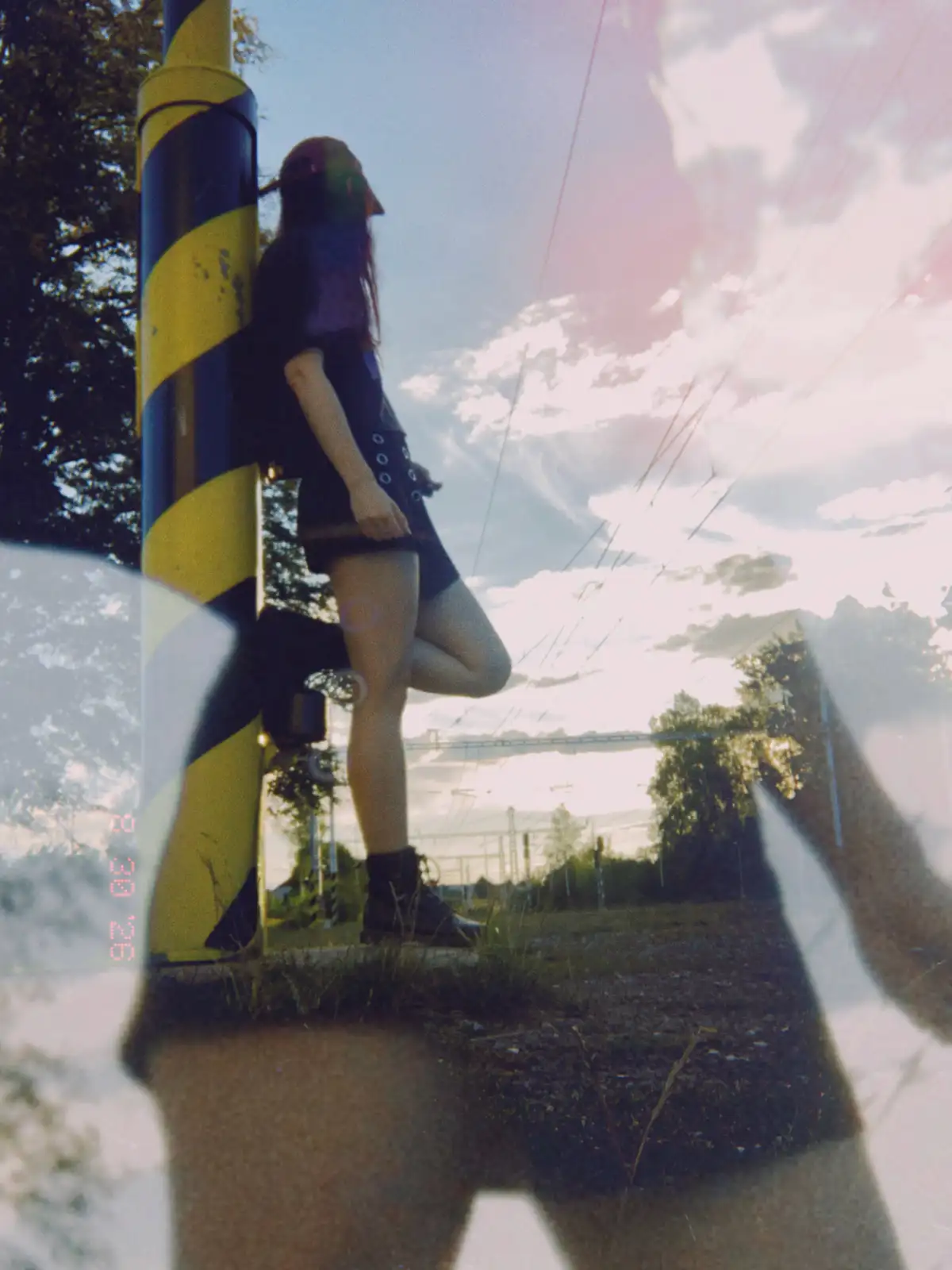
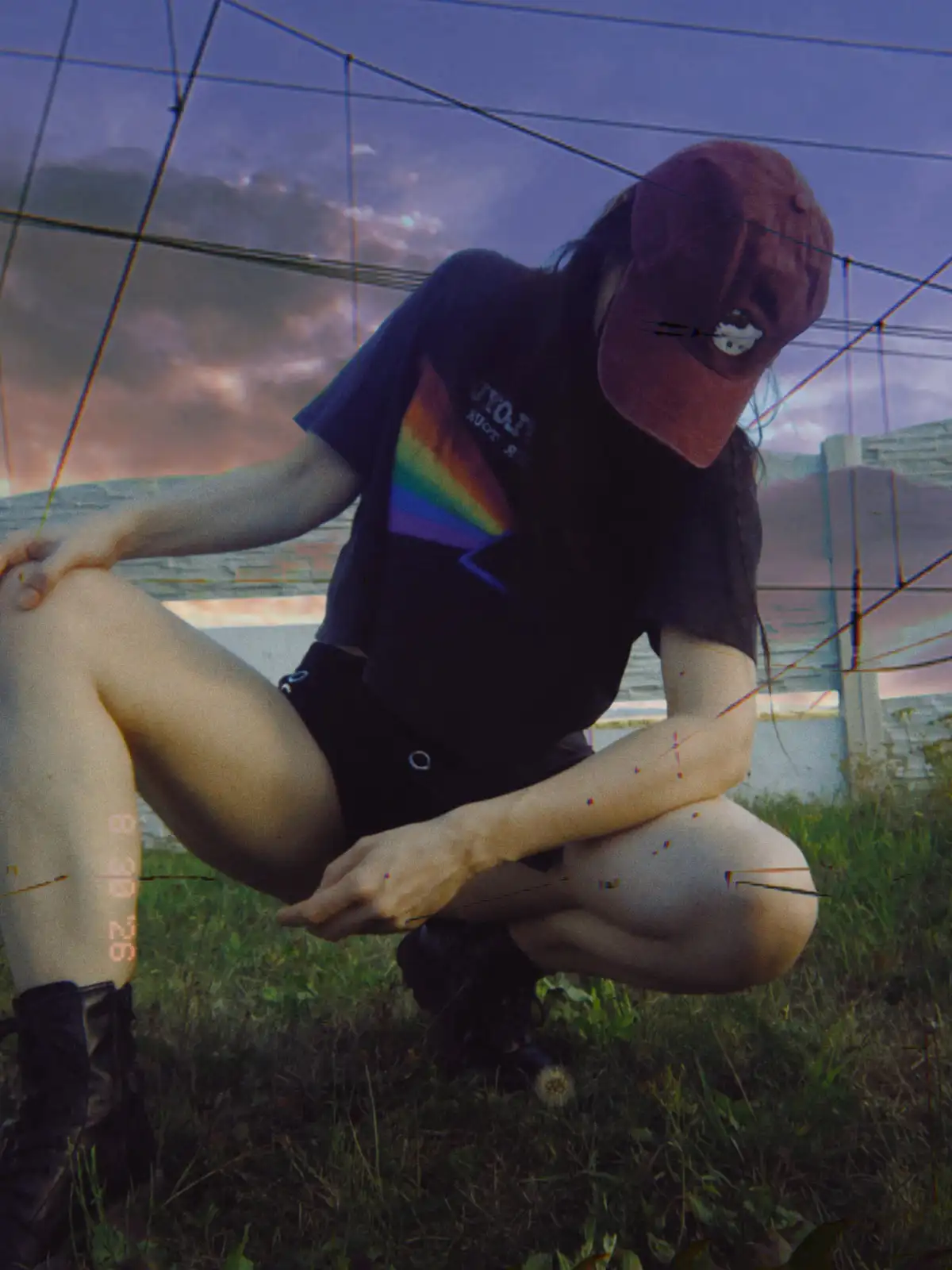
This Snapseed Double Exposure tool tutorial explains step by step how to use the dedicated Double Exposure tool in the Snapseed app. Besides the basic steps, you will also find some tips to make the effect look more natural. I have also added some creative ideas you can try, such as combining portraits with landscapes, architecture, or abstract textures. The examples in this tutorial include photos from a recent ghost photoshoot I did this year.
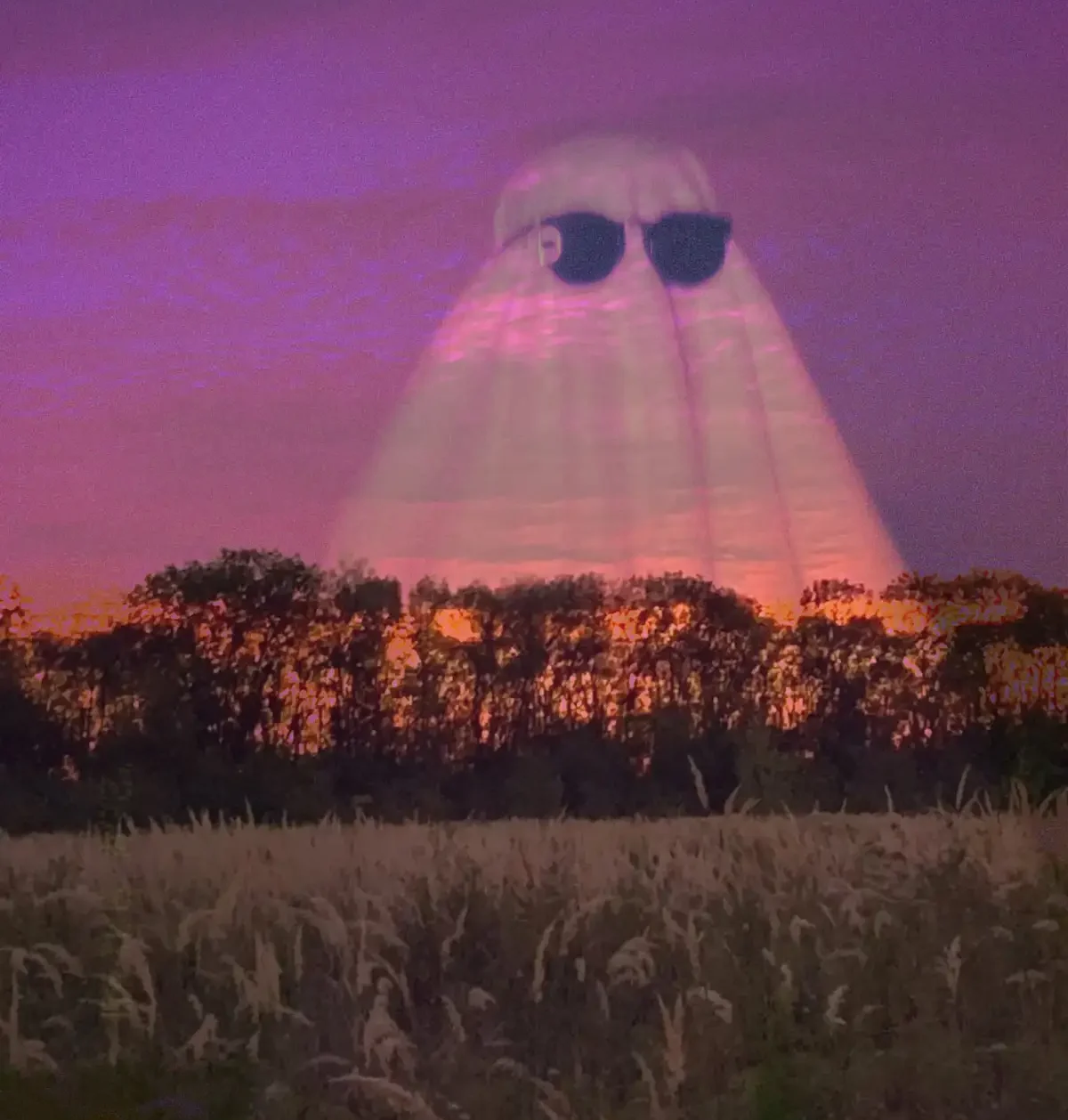
What Is the Snapseed Double Exposure Tool?
The Double Exposure tool in Snapseed allows you to combine two images and create a single layered composition. You can control how strongly the two images blend, making it useful for both subtle overlays and more experimental effects.
The idea itself is much older than smartphone editing. Double exposure comes from analog photography, where two images could be exposed onto the same piece of film. Photographers used this technique to create dreamlike portraits, silhouettes, and unusual visual combinations.
Digital editing made the process much easier. Instead of exposing the same film frame twice, you can now combine two separate images and adjust the result with a few taps. In Snapseed, the Double Exposure tool brings this technique into a simple mobile editing workflow.
How to Use the Snapseed Double Exposure Tool
To use the Double Exposure tool, install the Snapseed app and prepare the two images you want to combine. When you are ready, follow these steps.
1. Open Your Photo in Snapseed
Open Snapseed and add the image you want to use as your base. Tap the large Add Photo button and select the image you want to edit.
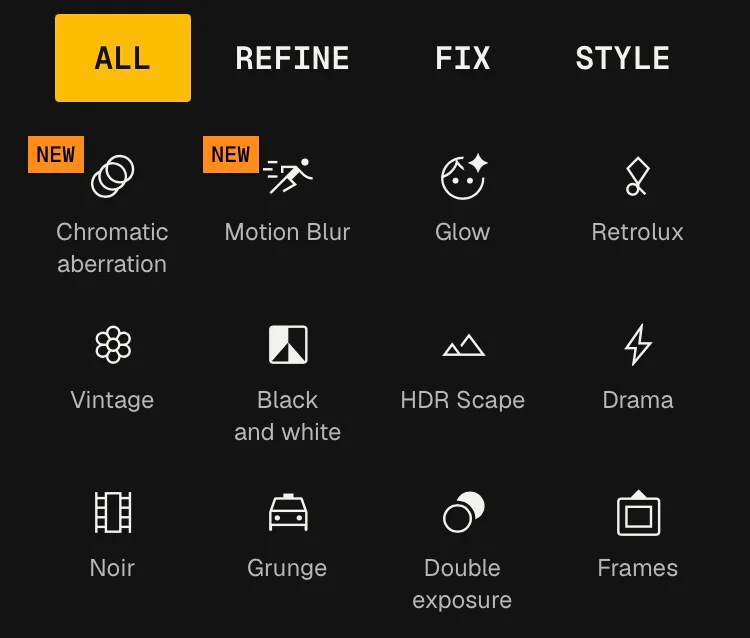
2. Select the Double Exposure Tool
You should now be inside the editor. Open Tools from the bottom menu and select Double Exposure.
3. Add a Second Image
The Double Exposure tool will now let you add another image. Select the photo you want to use as the overlay.
4. Choose a Blending Mode
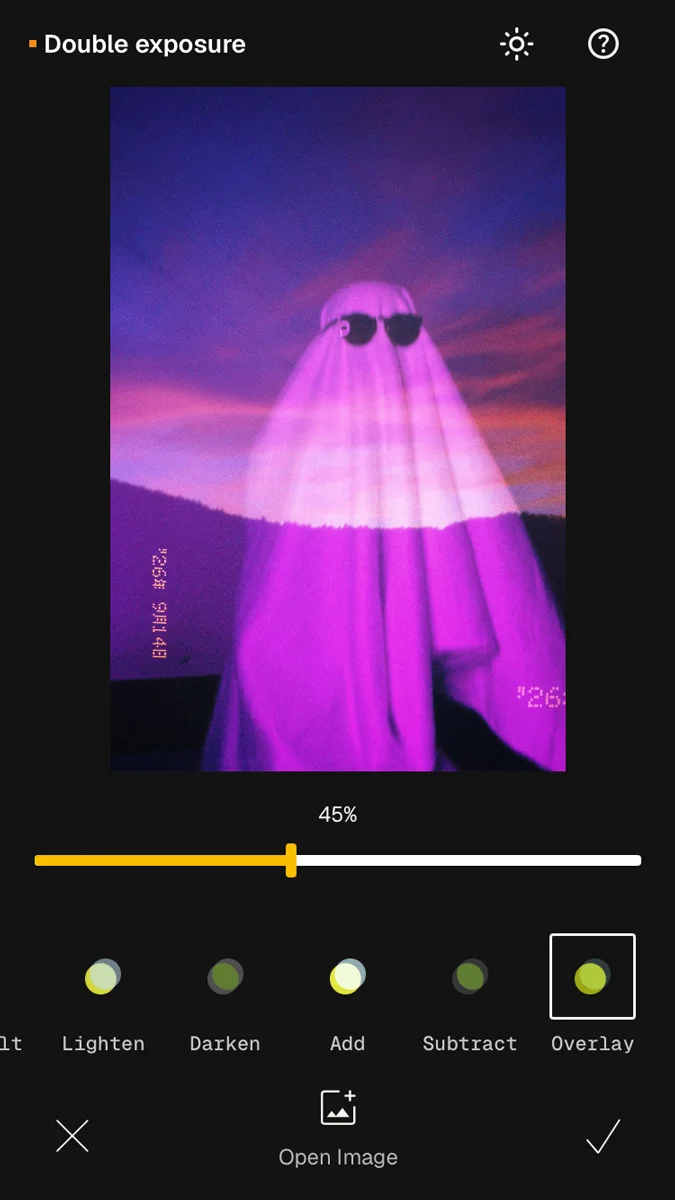
Snapseed offers six blending modes: Default, Lighten, Darken, Add, Subtract, and Overlay. They determine how the two images interact with each other.
- Default creates a basic transparent overlay and is a good starting point for a classic double exposure.
- Lighten keeps the lighter areas of the two images. It can work well when combining a portrait with a landscape or bright texture.
- Darken does the opposite and favors the darker areas. It can create interesting effects with silhouettes and high-contrast images.
- Add makes the combined image much brighter. It can work well for light leaks, glowing effects, or bright textures, but it can easily become too intense.
- Subtract creates a much darker result and can produce more experimental or dramatic effects.
- Overlay increases contrast and combines the light and dark areas of both images. It is useful when you want a stronger, more graphic result.
There is no single best mode for every image. Try switching between them and see which one works best with your particular combination.
5. Adjust the Opacity
Use the Opacity slider to control how strongly the second image appears over the base image. A lower opacity creates a more subtle blend, while a higher opacity makes the second image more prominent.
When you are happy with the result, tap the checkmark to apply the effect.
6. Position and Edit the Image
Before finishing, experiment with the position and size of the second image. Small changes can completely alter the composition.
You can also go back and try a different blending mode or opacity level. For more precise results, you can continue editing the final image with other Snapseed tools.
How to Make a Double Exposure Look Natural
A double exposure does not always have to look heavily edited or surreal. With the right images and a few subtle adjustments, you can create a more natural-looking blend.
- Choose images that complement each other. Photos with similar lighting or a clear contrast between light and dark areas are often easier to combine.
- Use silhouettes and empty space. A portrait with a simple background can work particularly well with a landscape, building, or texture.
- Lower the opacity. If the second image is too dominant, reduce its opacity until both images remain visible without competing with each other.
- Try different blending modes. The same two images can look completely different depending on the mode you choose.
- Keep the composition simple. Too many strong details can make the final image look messy rather than intentional.
- Check the image at full size. Zoom out regularly while editing to see how the two images actually work together.
Creative Double Exposure Ideas
Once you understand the basics, you can experiment with different types of images and create much more abstract compositions. Here are a few combinations you can try:
- Portrait + landscape:Combine a person’s silhouette with mountains, forests, clouds, or other landscapes.
- Portrait + architecture:Use buildings, windows, bridges, or other architectural details as the second layer.
- Person + texture:Try concrete, walls, paper, fabric, or other textures for a more graphic effect.
- City + nature:Mix urban scenes with trees, flowers, clouds, or other natural elements.
- Silhouette + abstract image:Use colorful or unusual images inside a silhouette for a more experimental result.
- Double exposure + double exposure:You do not have to stop after combining two images. You can export your finished double exposure and use it as the base image for another one. Add another photo and repeat the process to build several layers. This can be especially interesting if you want to create a more complex or abstract composition.
There are no strict rules for double exposure. Try unexpected combinations and experiment with different blending modes and opacity levels. Sometimes the most interesting results come from images that you would not normally put together.
Final Words
The Snapseed Double Exposure tool is a simple way to experiment with layered photography directly on your phone. Once you understand how the blending modes and opacity work, you can create anything from subtle overlays to highly abstract compositions. Try different combinations of portraits, landscapes, architecture, and textures to see what works best. And remember that a finished double exposure can become the starting point for another layer if you want to take the image even further.
Looking for more ways to edit your photos in Snapseed? Learn how to remove unwanted objects in Snapseed or find out how to whiten teeth in Snapseed.
Sources
Sources: