
This Snapseed tutorial focuses on QR codes. You will learn how to create your own Snapseed QR code and how to use pre-made QR codes created by other people. I will also explain the difference between QR codes and saved custom Looks, including when to use each option.
What Is a Snapseed QR Code?
A Snapseed QR code is a way to save and share your editing recipe. It can contain many of the adjustments you make to a photo, such as brightness, contrast, saturation, ambience, highlights, shadows, warmth, curves, white balance, colors, blur, bloom, glow, and other editing settings.
When someone scans the QR code in Snapseed, the app recreates the editing recipe on their photo. The result may look different depending on the original image, but the saved adjustments are applied automatically.
However, not every Snapseed edit can be saved or shared this way. During my testing, I found that edits involving certain masking or isolated adjustments, such as separating the background or subject, were not preserved in the QR code or a saved Look. Other adjustments, including blur and similar global effects, worked as expected.
This means that a Snapseed QR code is not a complete copy of your edited photo. It saves a recipe made from compatible editing adjustments rather than every single change you make in the editor.
Snapseed Save Look vs. QR Code
Save Look and QR Code are two different ways to reuse and share your Snapseed edits.
When you use Save Look, Snapseed saves your editing recipe as a custom Look inside the app. You can give it your own name and apply it to other photos later from the Looks section. You can also delete your saved Looks if you no longer need them.
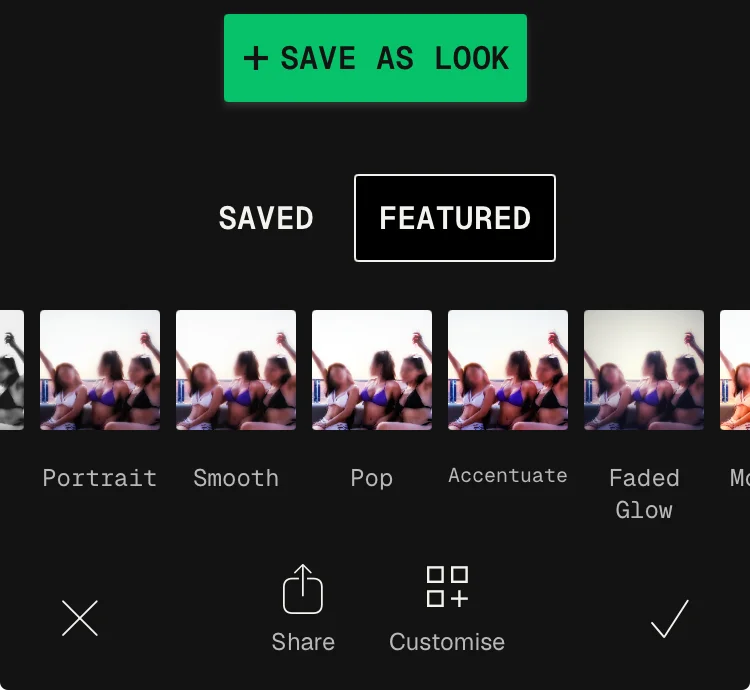
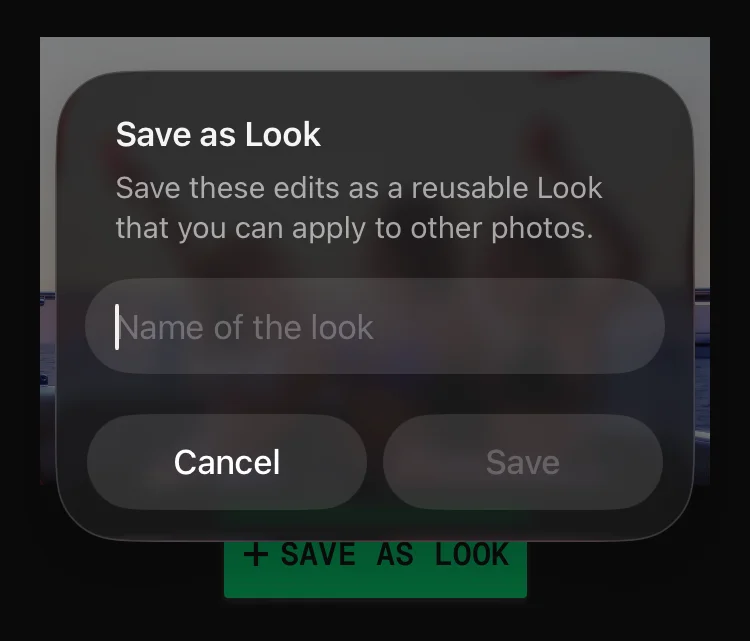
A QR Code works differently. Instead of saving the editing recipe directly in your Looks library, Snapseed generates a QR code that you can share with other people. Someone else can scan the code in Snapseed to apply the editing recipe to their own photo.
However, scanning someone else’s QR code does not automatically save that Look in your Snapseed Looks library. If you want to keep using it, you need to scan the QR code again when you want to apply it.
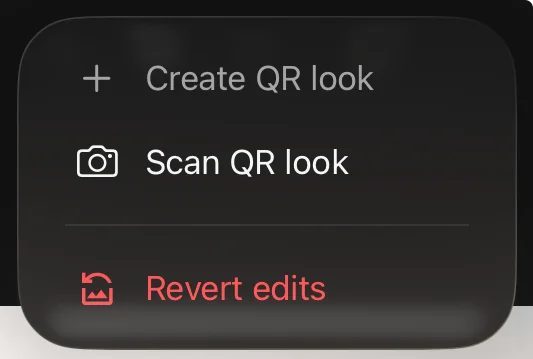
In short:
Feature | Save Look | QR Code |
Saves the editing recipe in Snapseed | Yes | No |
Can give it a custom name | Yes | No |
Appears in your Looks library | Yes | No |
Can be shared with other people | Not directly | Yes |
Can scan someone else’s recipe | No | Yes |
Can be deleted from your saved Looks | Yes | Not applicable |
How to Create a Snapseed QR Code
The process is easy. Just follow these steps:
- Open Snapseed and add or select a photo from your gallery.
- Edit the photo as you normally would. Keep in mind that some edits, such as masking or separating the subject or background, will not be included in the final Snapseed QR code.
- When you are happy with your edits, tap the three dots in the top menu and select Create QR Look.
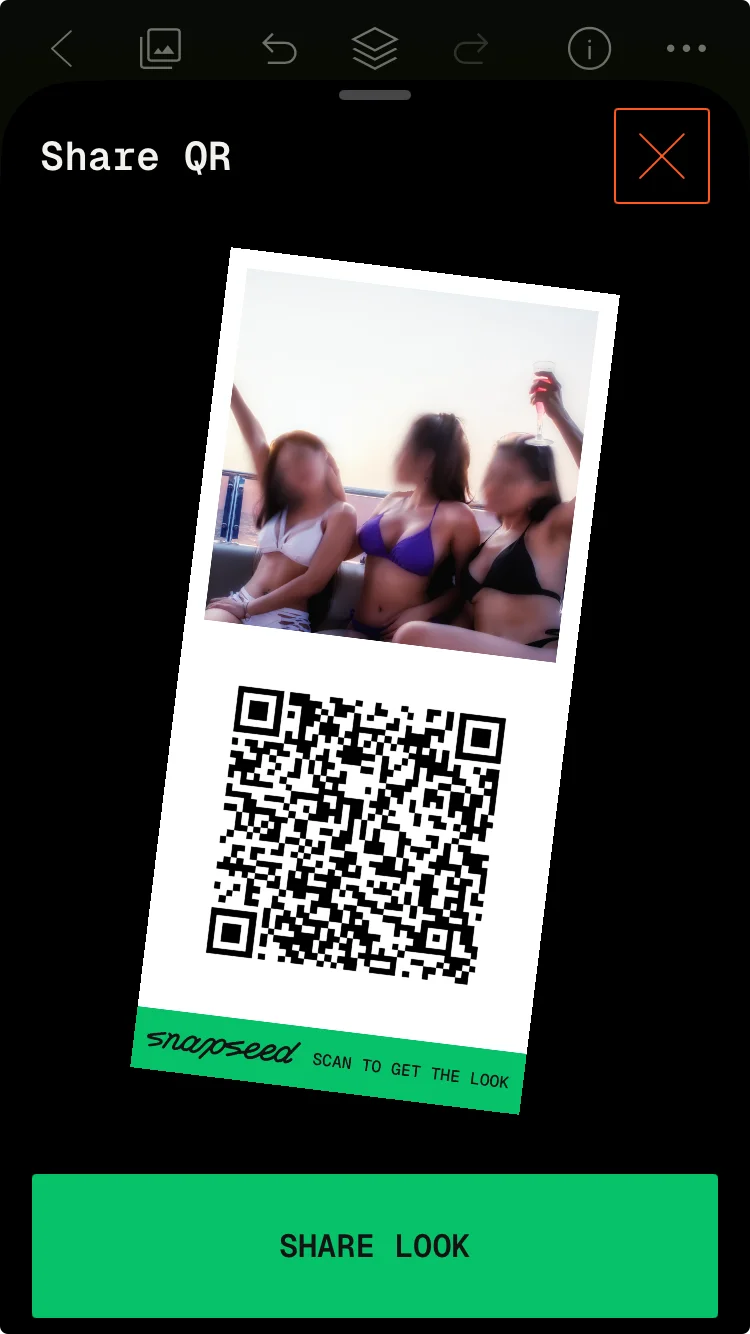
- On the next screen, you will see your edited photo with the QR code. Tap Share Look.
- You can then share the QR code directly with someone, open it in another app, or save the image to your phone.
The QR code now contains your compatible editing recipe and can be scanned by another Snapseed user.

How to Use a Snapseed QR Code
Using a Snapseed QR code is a simple way to apply someone else’s editing recipe to your own photo. You can download a QR code from the internet, receive it as an image, or scan one displayed on another device.
Once you open the QR code, Snapseed applies its editing recipe to your selected photo. But first, it will ask you if you want to apply these new settings.
Keep in mind that the QR code contains editing settings, not the original photo. The final result may therefore look different depending on the image you use.
How to Scan a Snapseed QR Code
Follow these steps to scan a Snapseed QR code:
- Open Snapseed and select the photo you want to edit.
- Tap the three dots in the top menu.
- Choose the option to scan a QR look.
- Display the Snapseed QR code on another phone, tablet, or computer.
- Point your phone’s camera at the QR code.
- Snapseed will scan the code and apply the editing recipe to your photo.
The QR code should be clearly visible on the other screen. If Snapseed cannot recognize it, try increasing the brightness of the screen or moving your phone closer to the QR code.
How to Scan a Snapseed QR Code From Your Phone Gallery
If you have a Snapseed QR code saved as an image on your iPhone, you do not necessarily need another device to scan it. On iPhone, you can open the QR code directly from the Photos app.
To use a Snapseed QR look from your gallery:
- Open the Photos app on your iPhone.
- Find the image containing the Snapseed QR code.
- Long-press the QR code image.
- Select the option to open the QR Look in Snapseed.
- Snapseed will open and apply the editing recipe to your photo.
My Snapseed QR Code Presets
I created these Snapseed QR Looks based on edits I use for my own photos. You can scan the QR codes and apply the editing recipes to your own images.
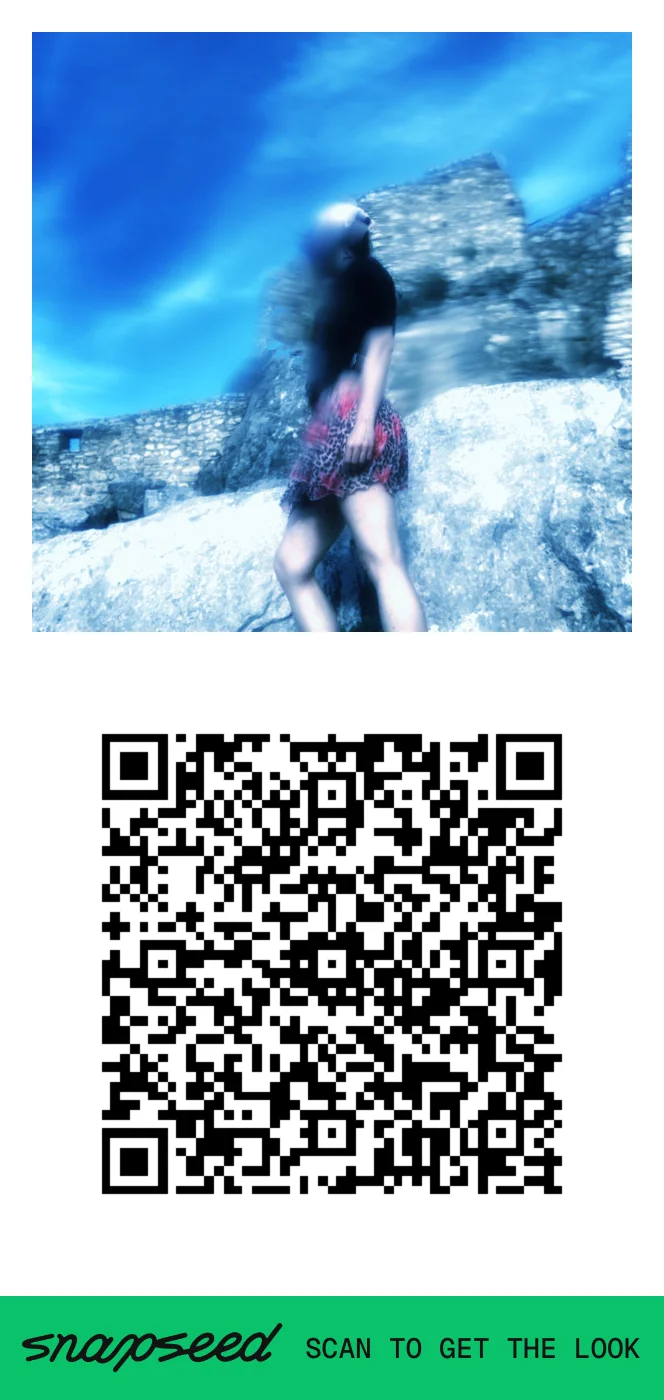
Coldhearted Fun
Coldhearted Fun is a cool-toned Snapseed QR Look that I created mainly for portraits. It gives photos a colder, slightly moody feel while keeping the overall look playful.
This look works best on portraits and photos with clear subject separation. You can also experiment with it on street photography or other images where you want a cooler atmosphere.
Best for: Portraits, street photography, moody photos
Sunset Aura
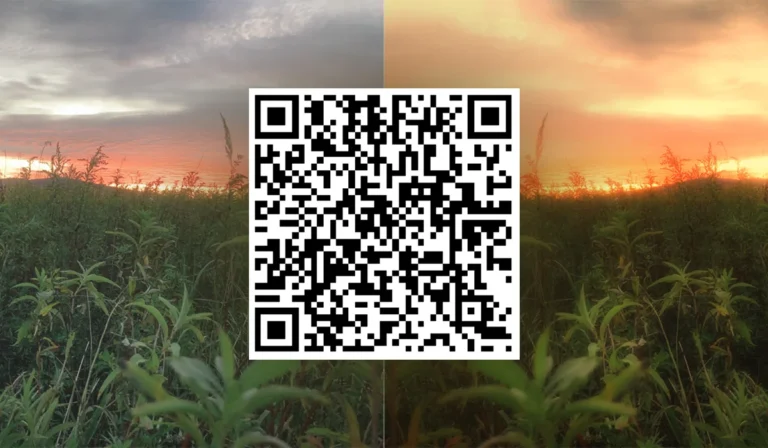
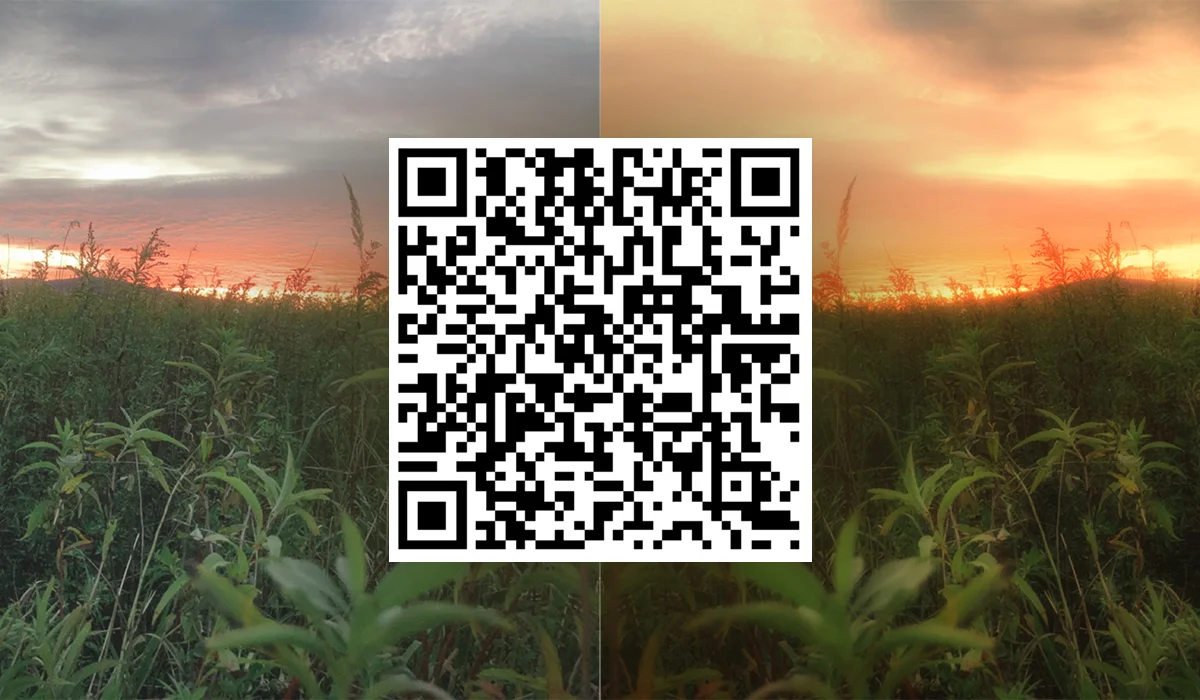
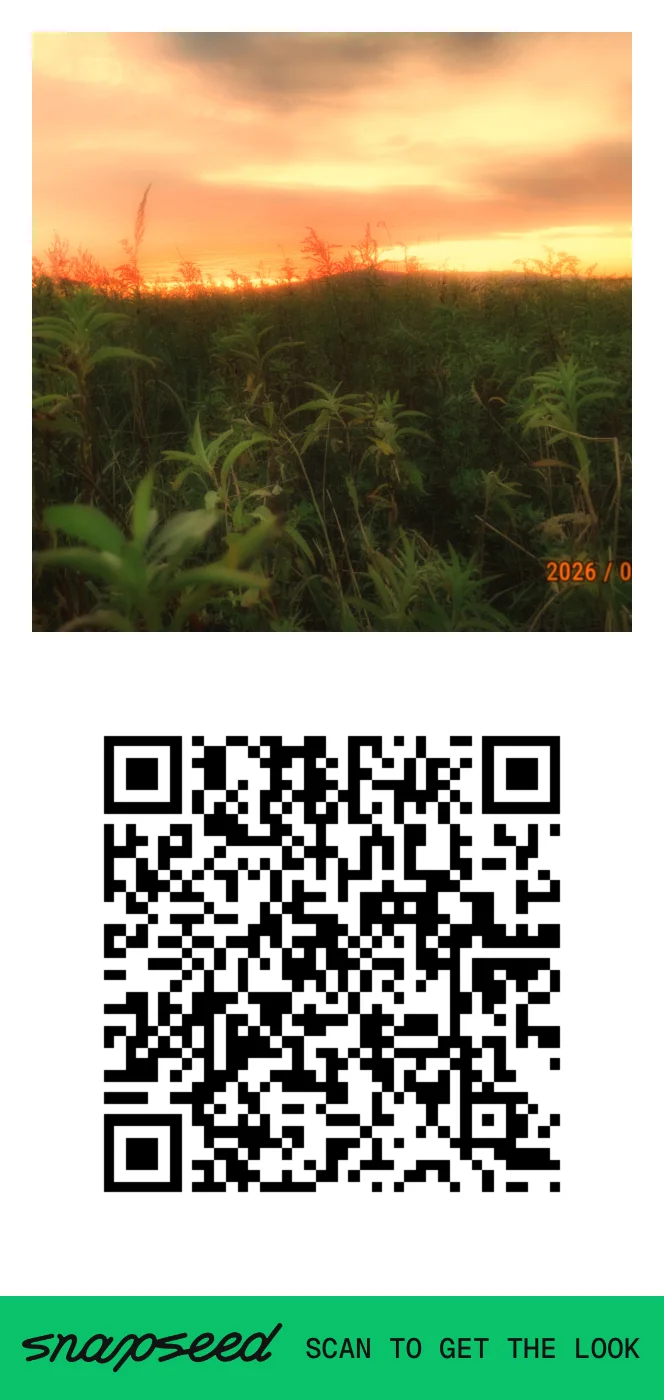
Sunset Aura is a Snapseed QR Look designed for sunset photography. It enhances the warm atmosphere of golden-hour images while adding more character, bloom and blur to the colors and overall mood.
Try it on sunsets, golden-hour landscapes, travel photos, and other images with warm natural light.
Best for: Sunsets, golden hour, landscapes, travel photography
Common Snapseed QR Code Problems
Snapseed QR codes are useful, but they do not preserve every type of edit. Here are some common problems you may encounter when creating or using a QR Look.
The QR Code Does Not Include All My Edits
Some Snapseed edits may not be preserved in a QR code. During my testing, I found that certain edits involving masking or separating the subject and background were not included in the final QR Look.
If an important part of your edit is missing, check whether it relies on a mask or an isolated adjustment.
The QR Code Does Not Scan
Make sure the QR code is clearly visible and large enough for Snapseed to recognize. If you are scanning it from another screen, increase the screen brightness and avoid reflections or glare.
You can also try moving your phone closer to or further away from the QR code.
I Only Have the QR Code Saved on My Phone
If you are using an iPhone, you can open a saved Snapseed QR code from the Photos app. Long-press the QR code image and select the option to open the Look in Snapseed.
Alternatively, display the QR code on another phone, tablet, or computer and scan it using Scan QR Look in Snapseed.
The QR Look Looks Different on My Photo
A QR code contains editing settings rather than a copy of the original photo. The same editing recipe can therefore produce different results on different images.
Lighting, colors, exposure, contrast, and other characteristics of the original photo can affect the final result.
The QR Look Does Not Look Like the Preview
QR Looks are not guaranteed to produce identical results on every photo. Some adjustments depend on the characteristics of the image they are applied to.
If the result is too strong or too weak, you can continue editing the photo manually after applying the QR Look.
Final Words
Snapseed QR codes are a simple way to share and reuse compatible editing recipes. You can create your own QR Looks or try recipes created by other Snapseed users. Just remember that the same QR Look can produce different results on different photos. You can also try my Coldhearted Fun and Sunset Aura QR Looks if you want to experiment with new editing styles.
How to remove unwanted objects in Snapseed
How to whiten teeth in Snapseed
How to Blur a Face in Snapseed
How to Use the Snapseed Double Exposure Tool
FAQ
A Snapseed QR code contains an editing recipe that you can apply to another photo in Snapseed. It does not contain the original photo.
Edit a photo in Snapseed, tap the three dots in the top menu, and select Create QR Look. Snapseed will generate a QR code that you can share or save.
Open a photo in Snapseed and select Scan QR Look from the QR Look menu. You can scan a QR code displayed on another phone, tablet, or computer.
On iPhone, you can open a saved Snapseed QR code from the Photos app. Long-press the QR code image and select the option to open the Look in Snapseed. The available options can vary between devices and app versions.
A scanned QR code does not automatically appear in your Looks library as a saved custom Look. A QR code and a saved Look are two different ways of reusing Snapseed edits.
Sources
Sources: