

Snapseed’s Expand tool lets you extend an image’s dimensions by filling in the newly added space. In this short tutorial, I’ll show you how to use it, share examples I’ve tested, and explain its limitations, including where it falls short compared to Photoshop’s Fill and Generative Fill tool.

What Is the Snapseed Expand Tool?
Snapseed’s Expand tool lets you increase the dimensions of an image. You can choose to fill the newly added space with a solid color or use the app’s built-in AI to generate the fill automatically. However, the AI-generated results can be inconsistent, especially when the tool needs to recreate complex details or extend a busy background.
How to Use the Snapseed Expand Tool
To use the Snapseed Expand tool, open the app and select the image you want to edit. Tap the big green button to add a photo.
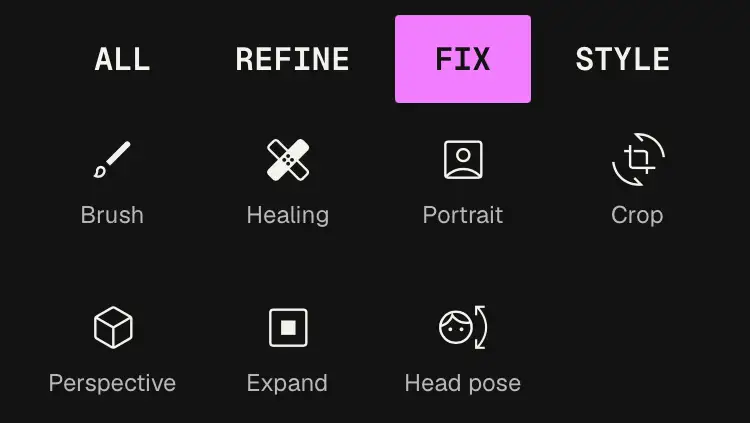
Once you’re in the editor, tap Tools, then select Expand.
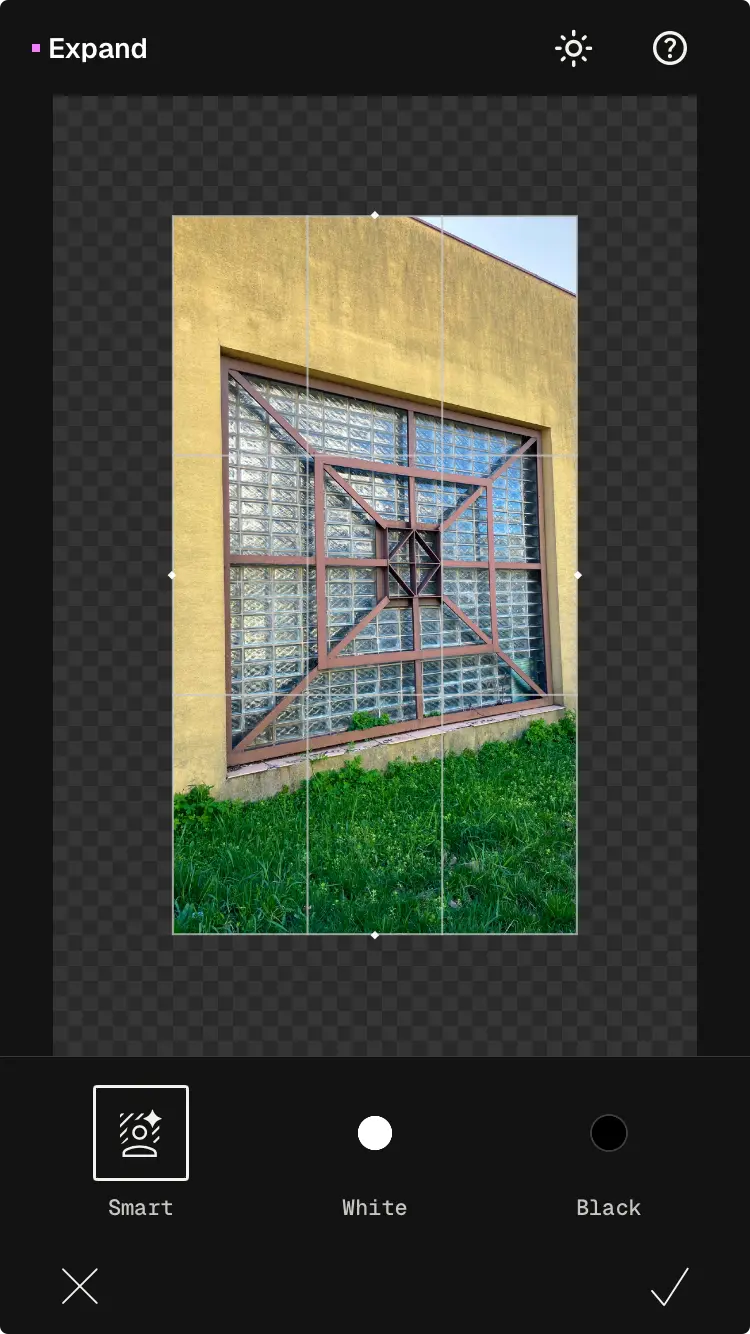
You should see your original image surrounded by a transparent area. The tool offers Smart Expand as first option, which relies on AI to fill the newly added space. You can also choose between two other options: White and Black.
Start with Smart Expand if you want the app to generate additional image content. Tap one of the edges and drag it outward to extend the canvas in that direction. You can adjust the image dimensions by expanding one or more sides. Snapseed will then use AI to fill the added space.
The results may vary depending on the original photo and its complexity. Simple backgrounds may be easier to extend. Detailed textures, objects, and intricate patterns can produce less convincing results. Sometimes you might need to use other tools (Snapseed healing tool, etc. ) to get rid of certain glitches or repeated content that looks like being made with Photoshop Stamp tool.
The White and Black options work differently. Instead of generating new image content, they add solid white or black space around the original image. You can drag the edges to adjust the canvas size, but these options are more useful for adding simple borders than for extending the image itself.
If you want a wider white or black area than you can create in one step, you can export the image and import it again, then use Expand to add more space around the existing border.
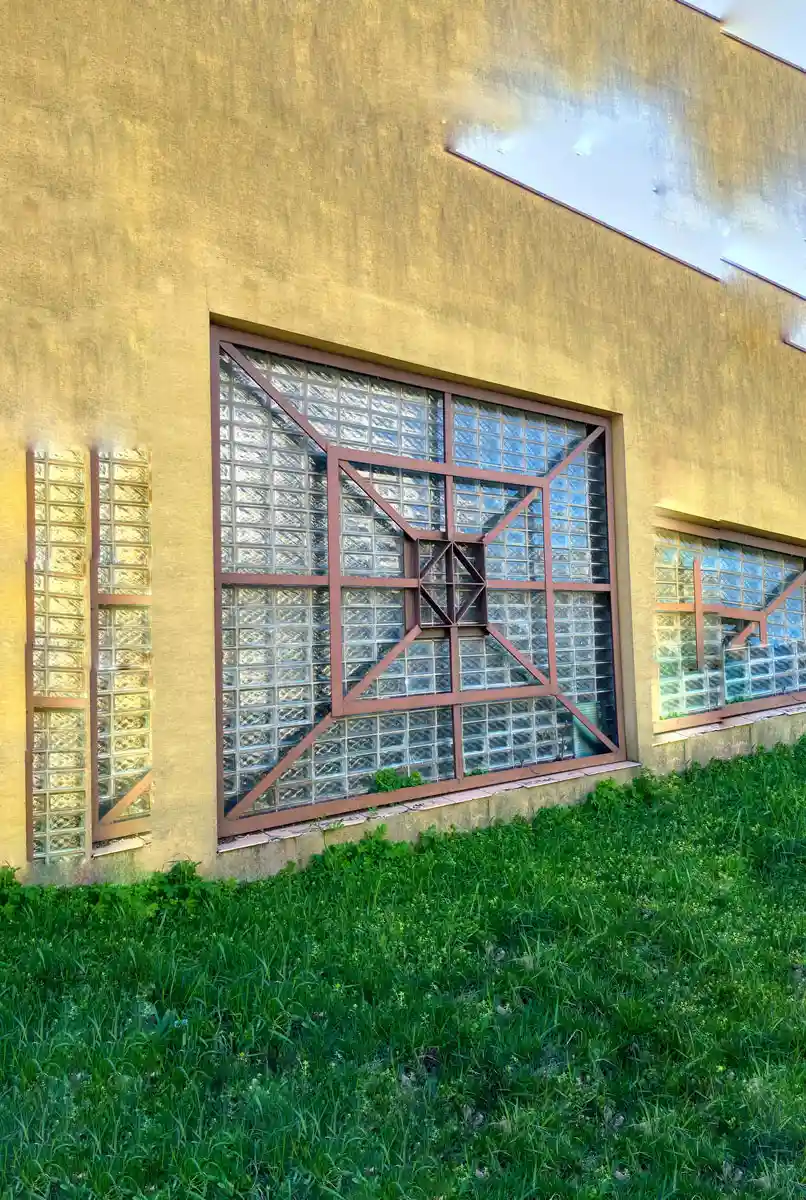
Snapseed Expand Tool Example: Before and After
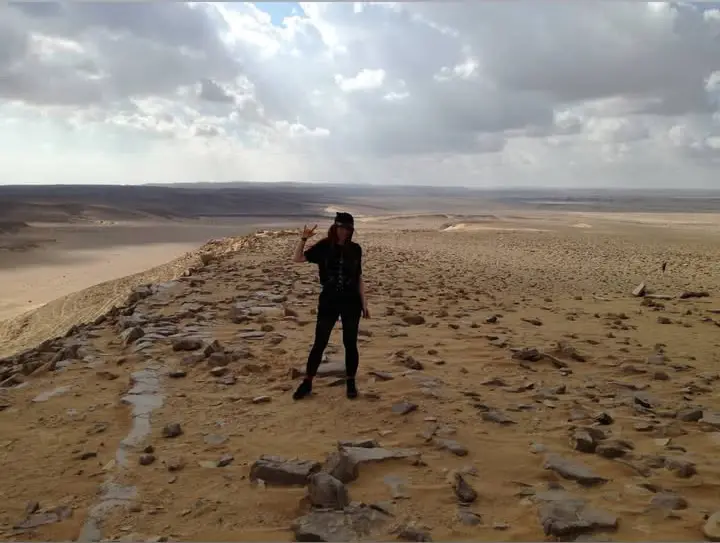
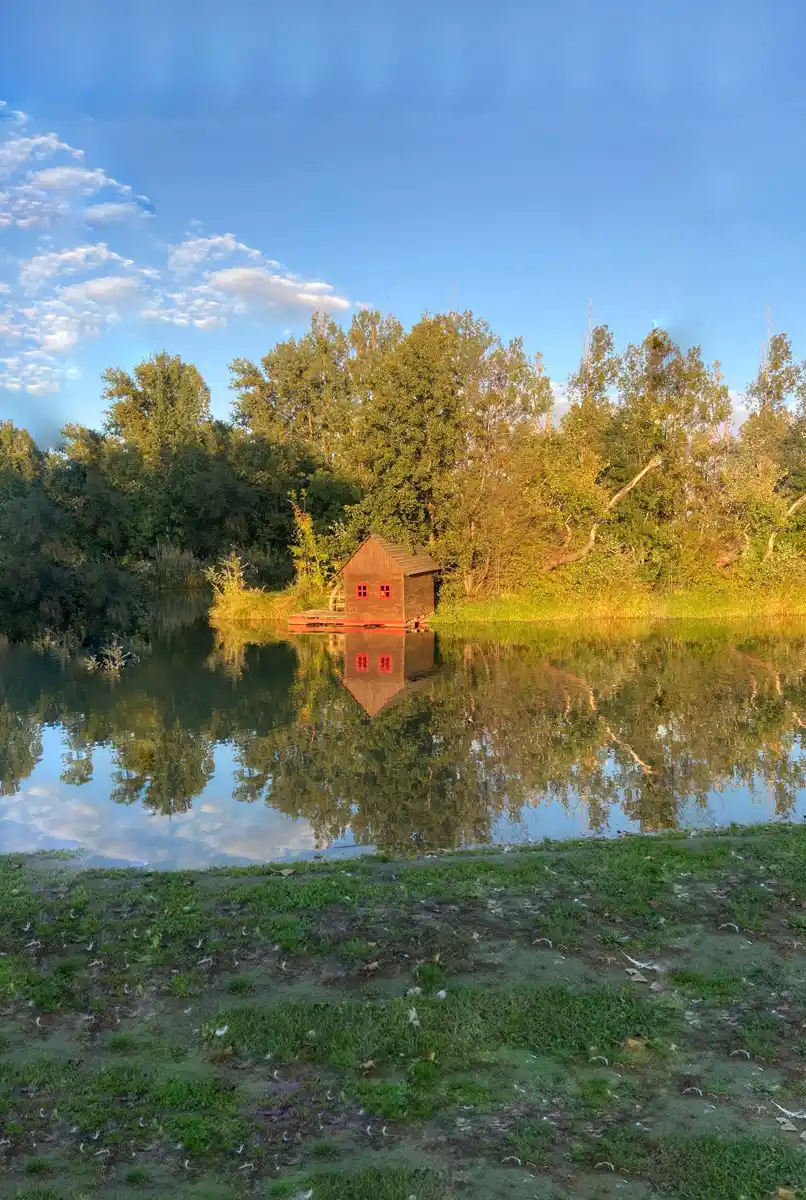
Here are some examples from my own tests that show why I wouldn’t rely on Snapseed’s Smart Expand for every image. The results become less convincing when you try to extend a larger area rather than just a few pixels.
Compared with Photoshop’s Content-Aware Fill or Generative Fill, Snapseed often struggles to create convincing extensions. In some of my examples, the generated content looks like a stamped or cloned copy of details from the original image rather than a natural continuation of the scene.
I’ve noticed a similar issue when using Snapseed’s Healing tool. Instead of blending the surrounding details seamlessly, it can sometimes leave behind repeated patterns or copied-looking elements.



How to Use Expand Tool With a White or Black Background
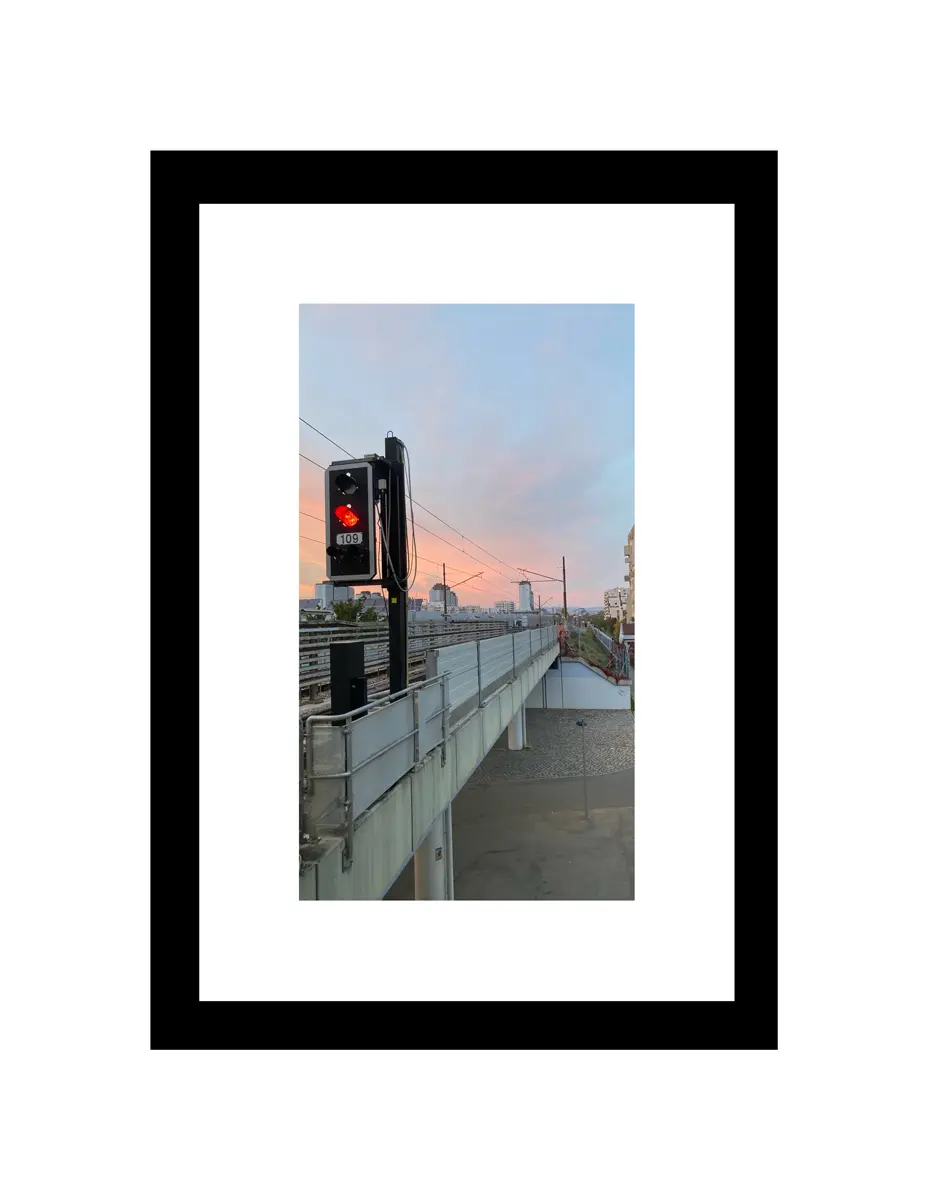
If you want to add white space around a photo, Snapseed’s Expand tool offers a simple solution. Open your image, go to Tools → Expand, and select White. You can then extend the canvas to create a white border around your photo.
Unlike Smart Expand, the White and Black options don’t attempt to generate new image content. They add a solid-color area around the original image instead. This makes them useful for creating simple borders, adding negative space, or adjusting a photo’s composition without cropping the original subject.
Some Snapseed users also recommend combining solid-color borders with Smart Expand for creative framing effects. However, if your goal is to create a larger, seamless white background around a product or portrait, the solid-color option won’t extend the original scene. You’ll need to use Smart Expand or another editing tool for that.
Is the Snapseed Expand Tool Available on Android?
Yes, the Snapseed Expand tool is also available on Android. The feature works similarly on both Android and iOS, offering the same expansion options. However, results may vary depending on the image you use.
Snapseed Expand Tool Not Working?
If the Snapseed Expand tool doesn’t seem to work, make sure you’re dragging the edges of the original image outward to extend the canvas. Depending on the available space and the direction you want to expand, you may need to drag a specific edge rather than the entire image.
If nothing happens, try dragging the edge a little farther and check whether you’re adjusting the canvas in the intended direction. The available expansion area may also depend on the current canvas dimensions.
Final Words
Snapseed’s Expand tool may be more useful for adding simple black or white borders than for extending image content, even though the app has a separate Frames tool. In my tests, Smart Expand produced less convincing results than other AI-powered tools available today. If you want to extend a photo’s background naturally, I’d recommend trying an alternative tool instead.
Image Source:
Sources: